Tasks, photos, daily logs, forms, materials, production and equipment.
Tasks and punch lists
WhereField work → Tasks
PlanAll plans
WhoEveryone (employees and contractors see the tasks assigned to them)
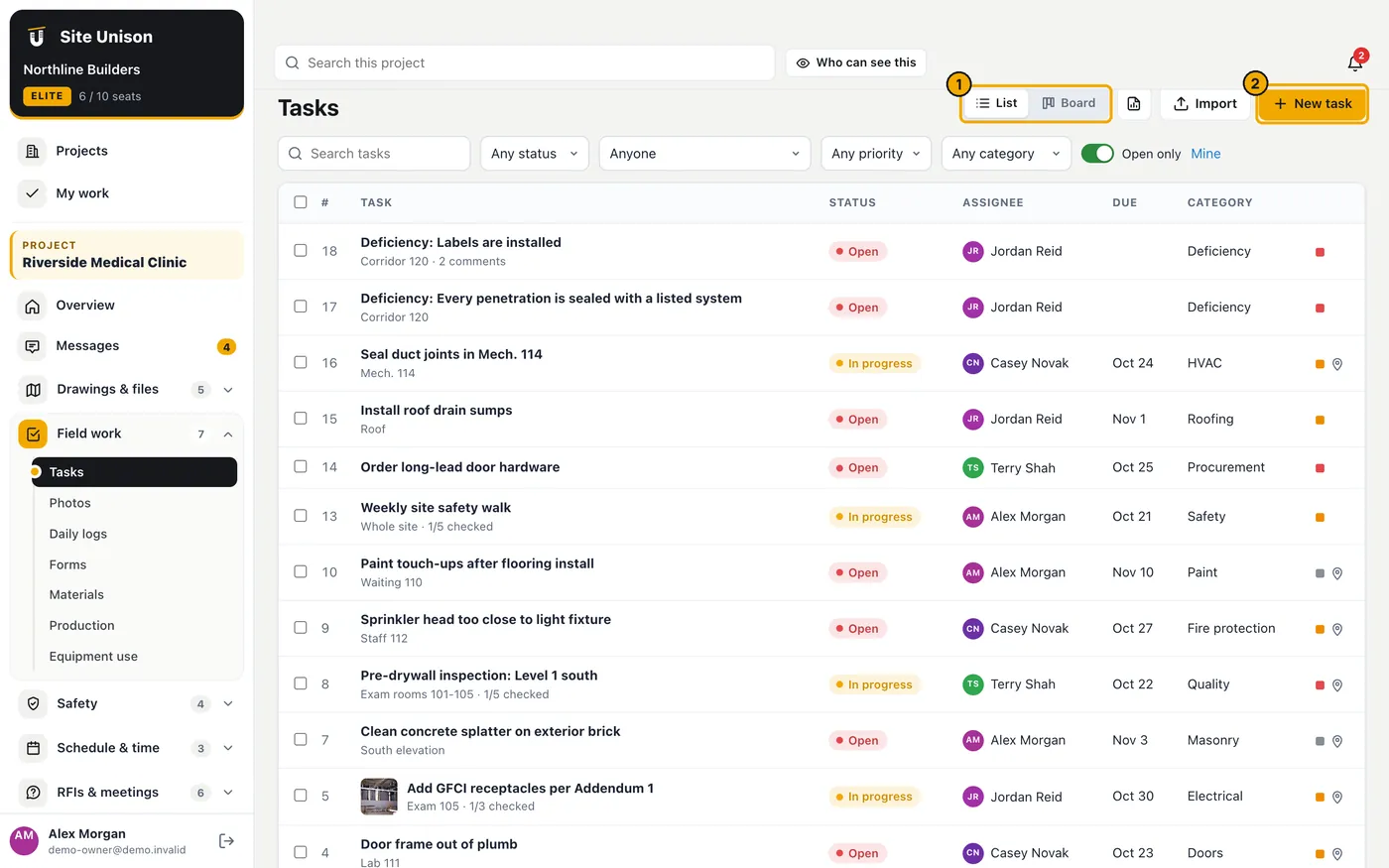
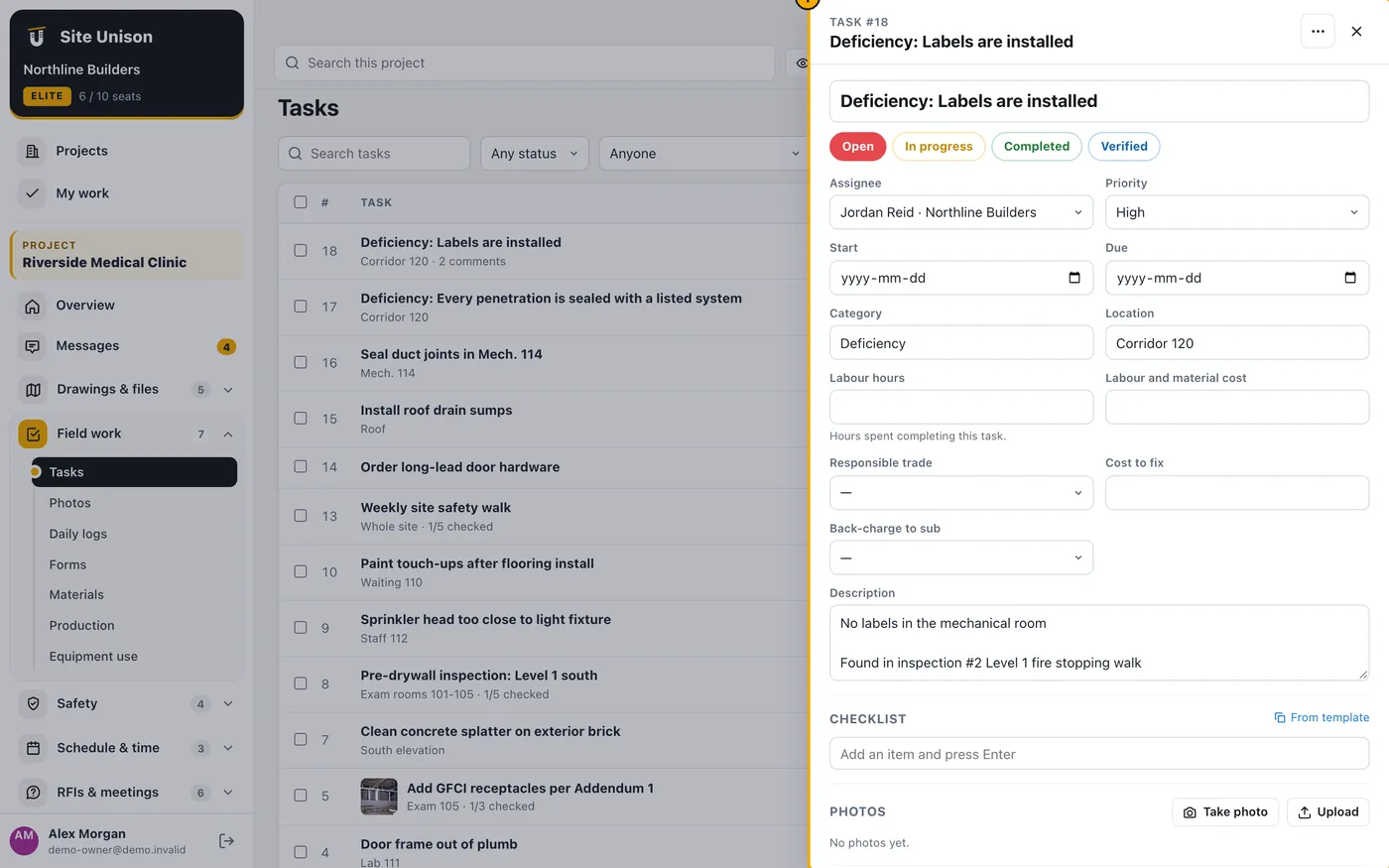
Tasks track punch items, deficiencies, inspections and any work to do, from open to verified. Each task has an assignee, due date, priority, category, checklist, photos, location on a sheet and a discussion. Employees and contractors see only the tasks assigned to them unless a manager turns on the Tasks screen for them.
How to use it
Open Tasks. Switch between List and Board, and filter by status, assignee, priority or category.
Click New task, fill in the title, assignee, due date and location, and add photos or a checklist. Or open a sheet and tap where the work is.
Change the status as work moves (for example Open → In progress → Completed → Verified). Statuses with verification need a superintendent or above to verify.
Tick several tasks to update or delete them together. Use Import to bring tasks in from a spreadsheet.
Photos, 360° photos and the 3D map
WhereField work → Photos
PlanFree (stamps on Pro, 360° on Elite)
WhoEveryone on the project
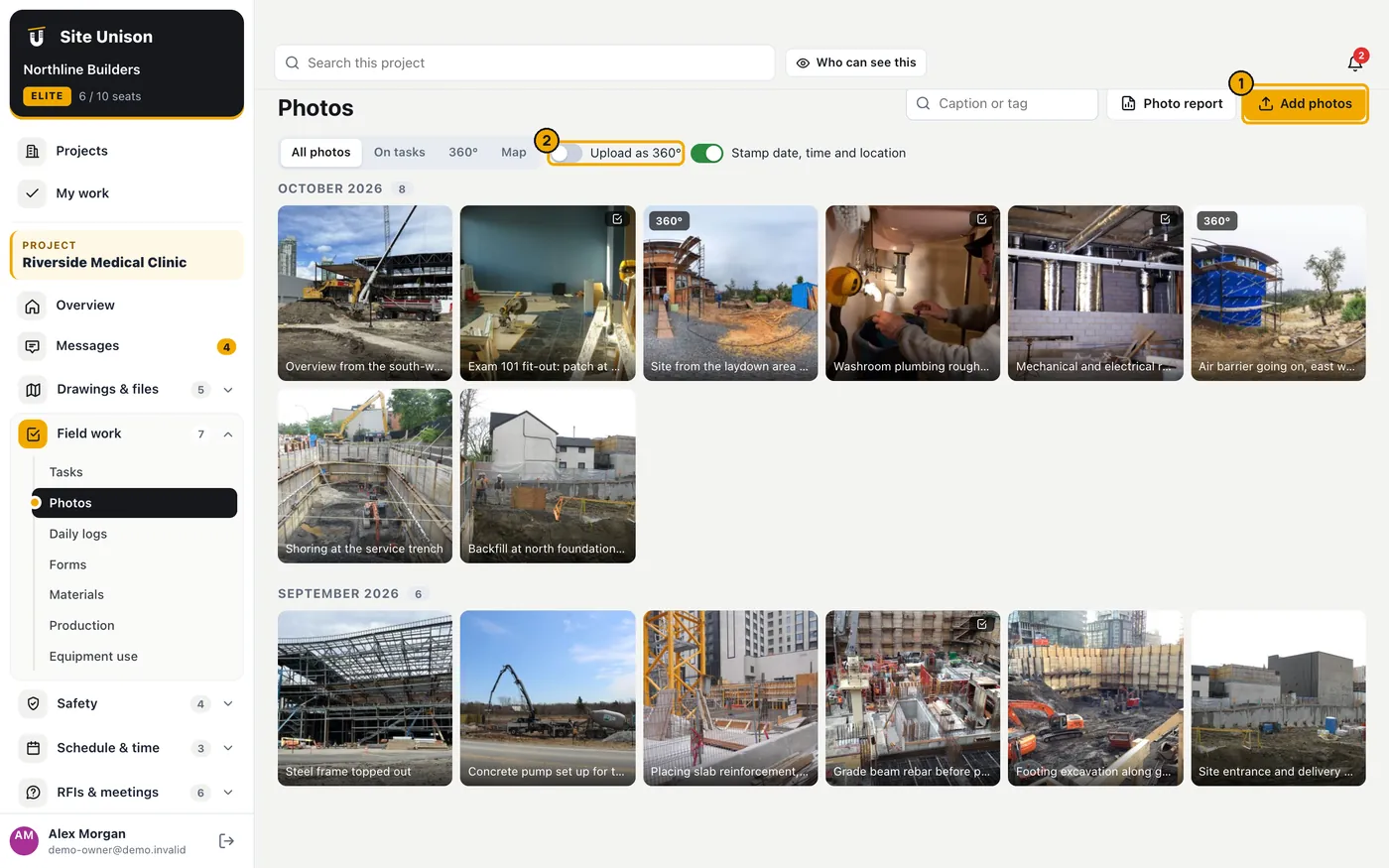
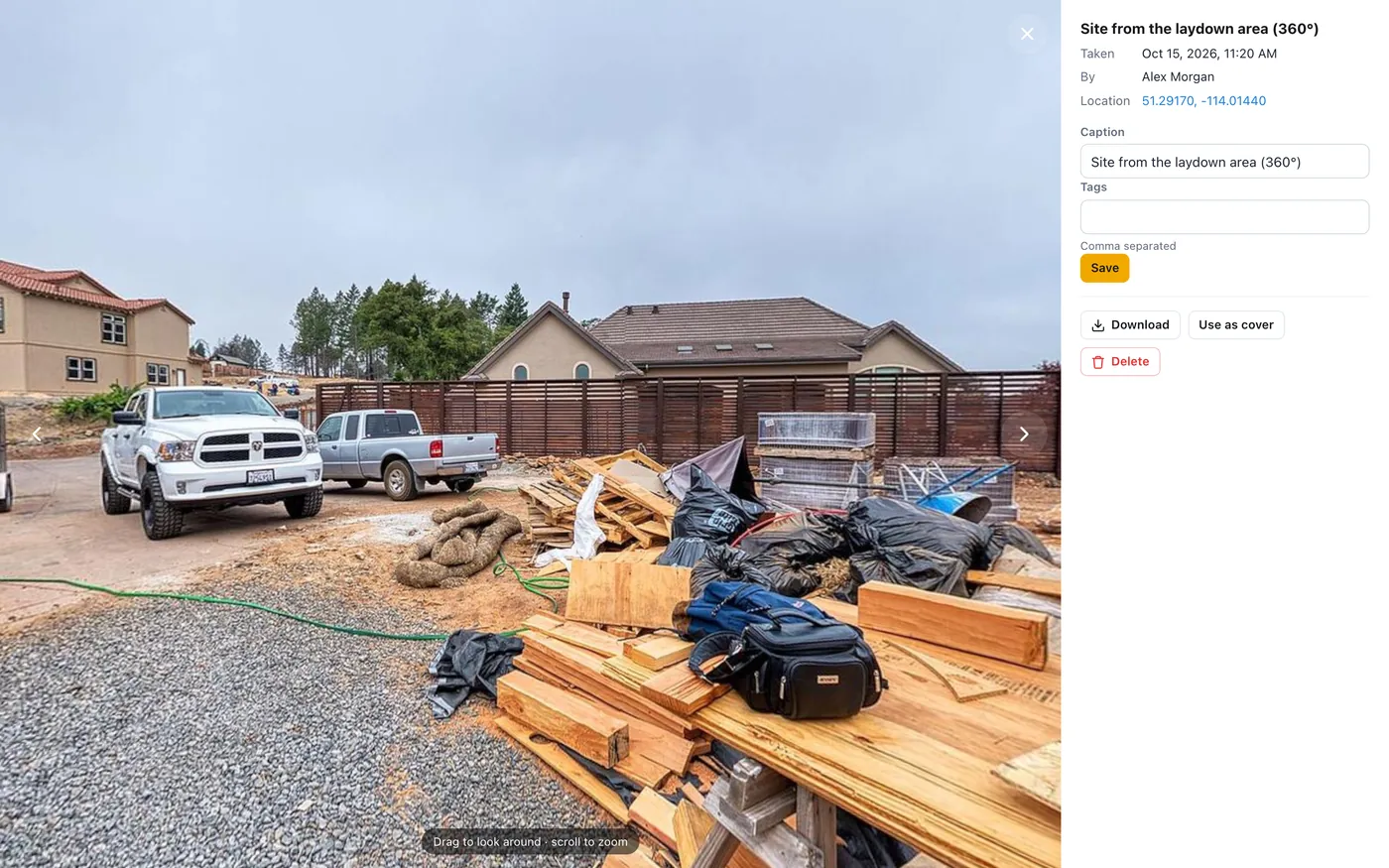
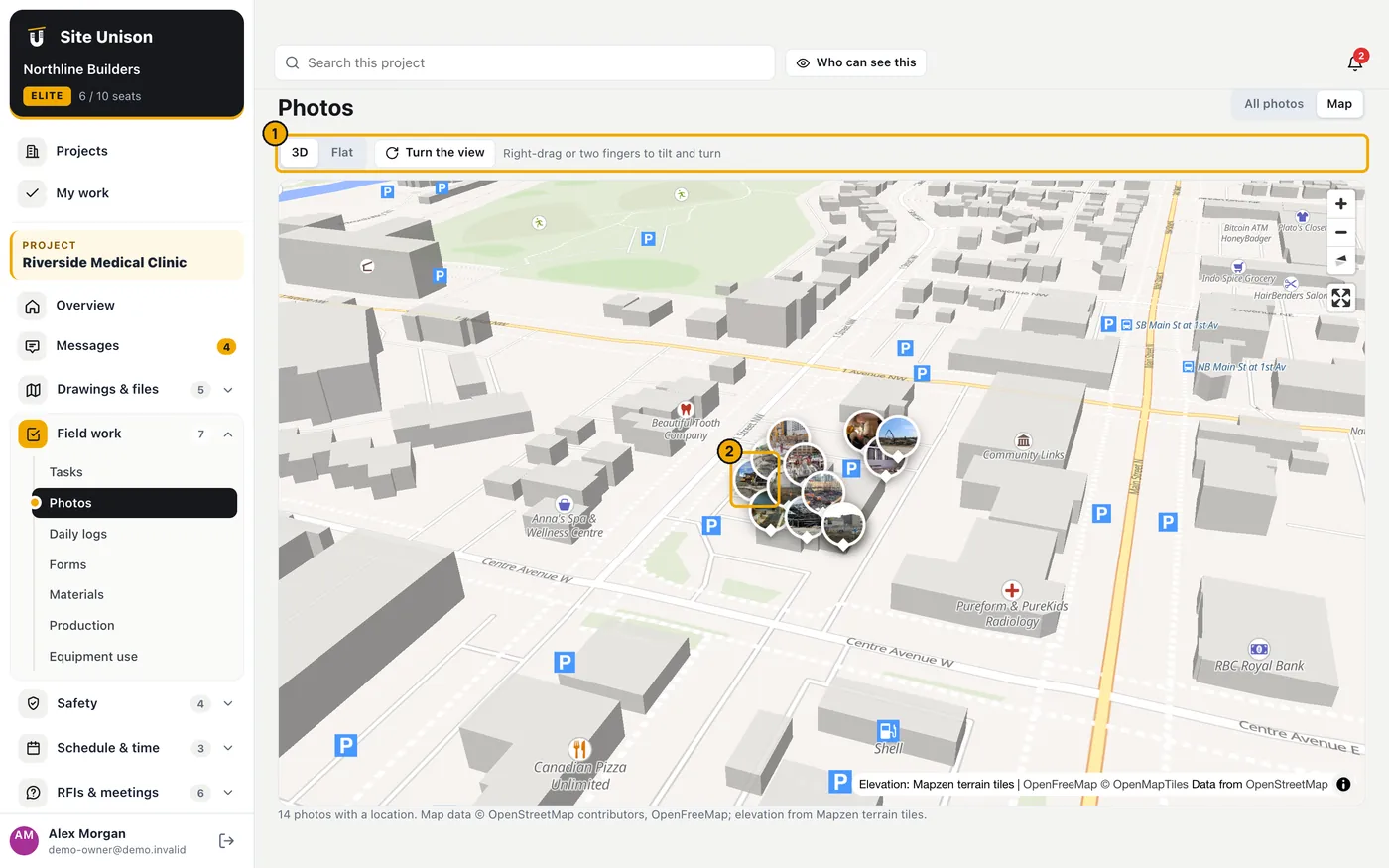
Photos are grouped by day, stamped with the date, time and location, and can be pinned to sheets and tasks. Upload real 360° panoramas to walk the site from the office. The map shows every photo with a location on a live 3D map with terrain and buildings, or on a flat map.
How to use it
Open Photos and click Add photos, or drag photos onto the page. Location and time are read from the photo.
For panoramas, switch on Upload as 360° (2:1 panoramas and camera-tagged 360 photos are detected automatically). Open one and drag to look around.
Click Map. In 3D, right-drag (or use two fingers) to tilt and turn, click Turn the view to rotate, and click a photo pin, then its preview, to open it. Choose Flat for a plain map.
Click Photo report for a PDF of the selected photos.
Daily logs
WhereField work → Daily logs
PlanPro (AI draft on Elite)
WhoOwner, project managers and superintendents write; guests can read
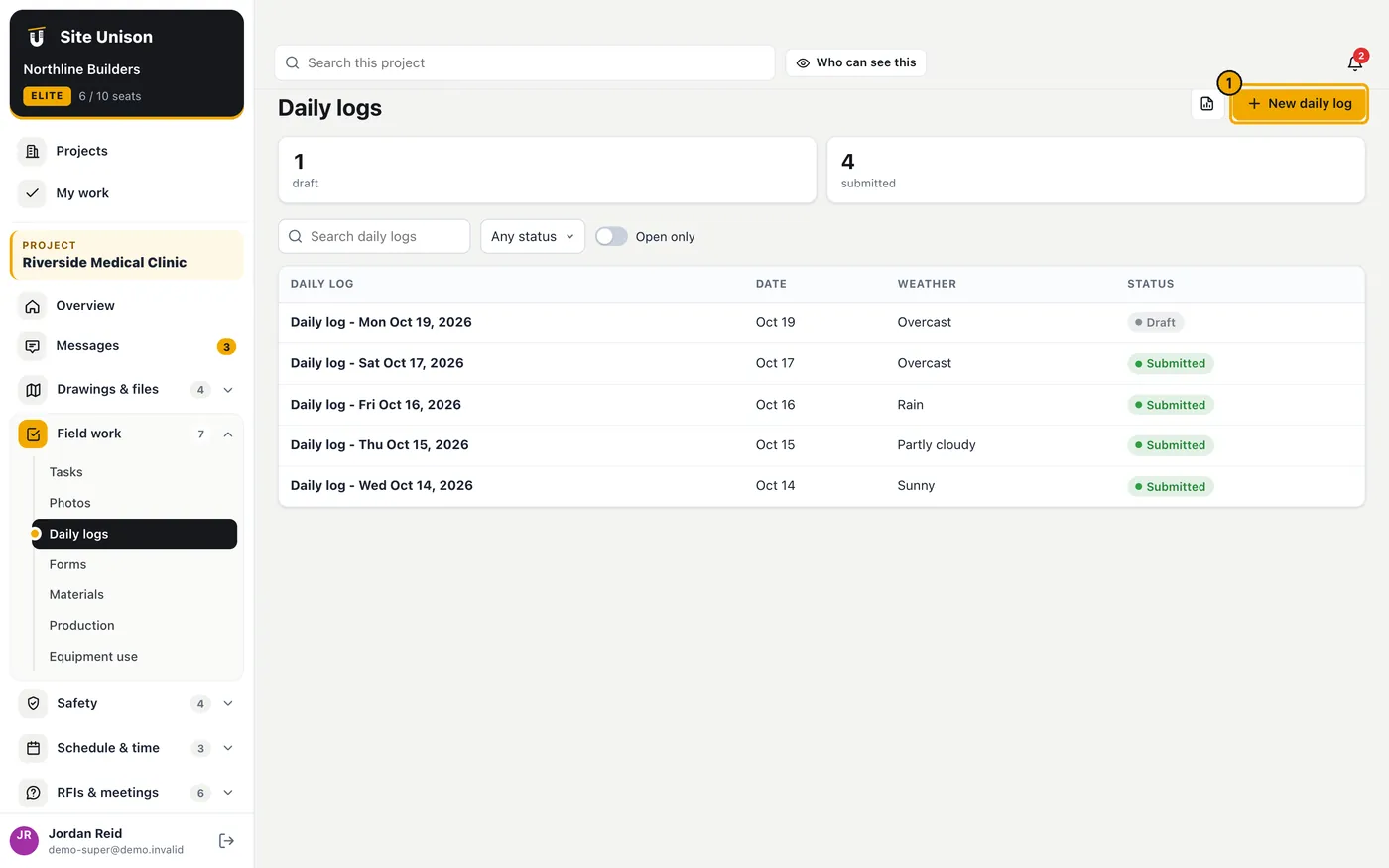
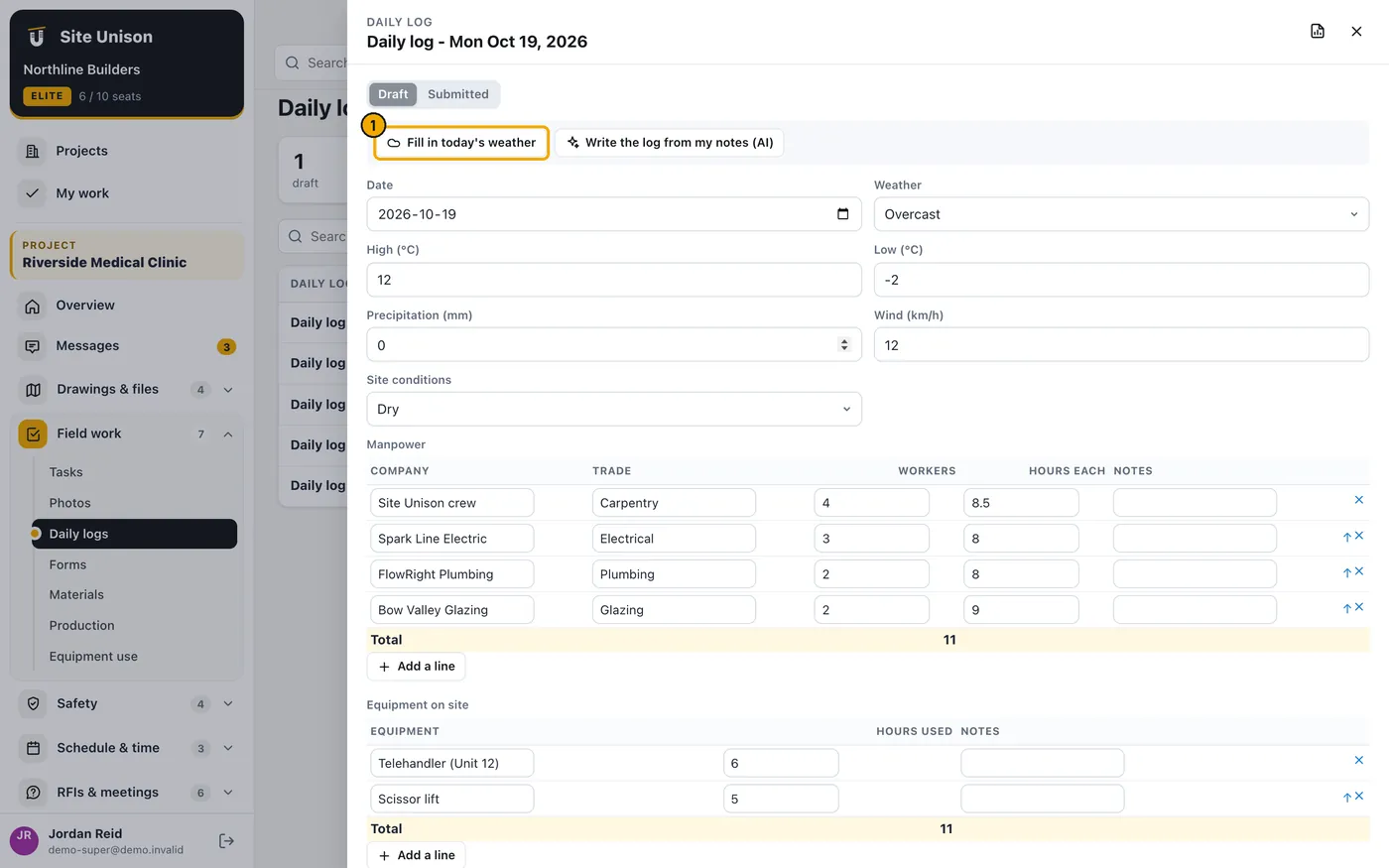
One log per day with the weather for the site, manpower by company and trade, equipment hours, deliveries, visitors, work completed, delays and safety notes, with photos.
How to use it
Open Daily logs and click New daily log.
Click Fill in today's weather to look it up for the project address. Add crews, equipment, deliveries and notes.
On Elite, click Write the log from my notes (AI), type a few lines, and the log is drafted from your notes and today's photos. Review it.
Attach photos, then mark the log Submitted. Use the PDF button to share it.
Forms
WhereField work → Forms
PlanElite (custom templates)
WhoEveryone on the project
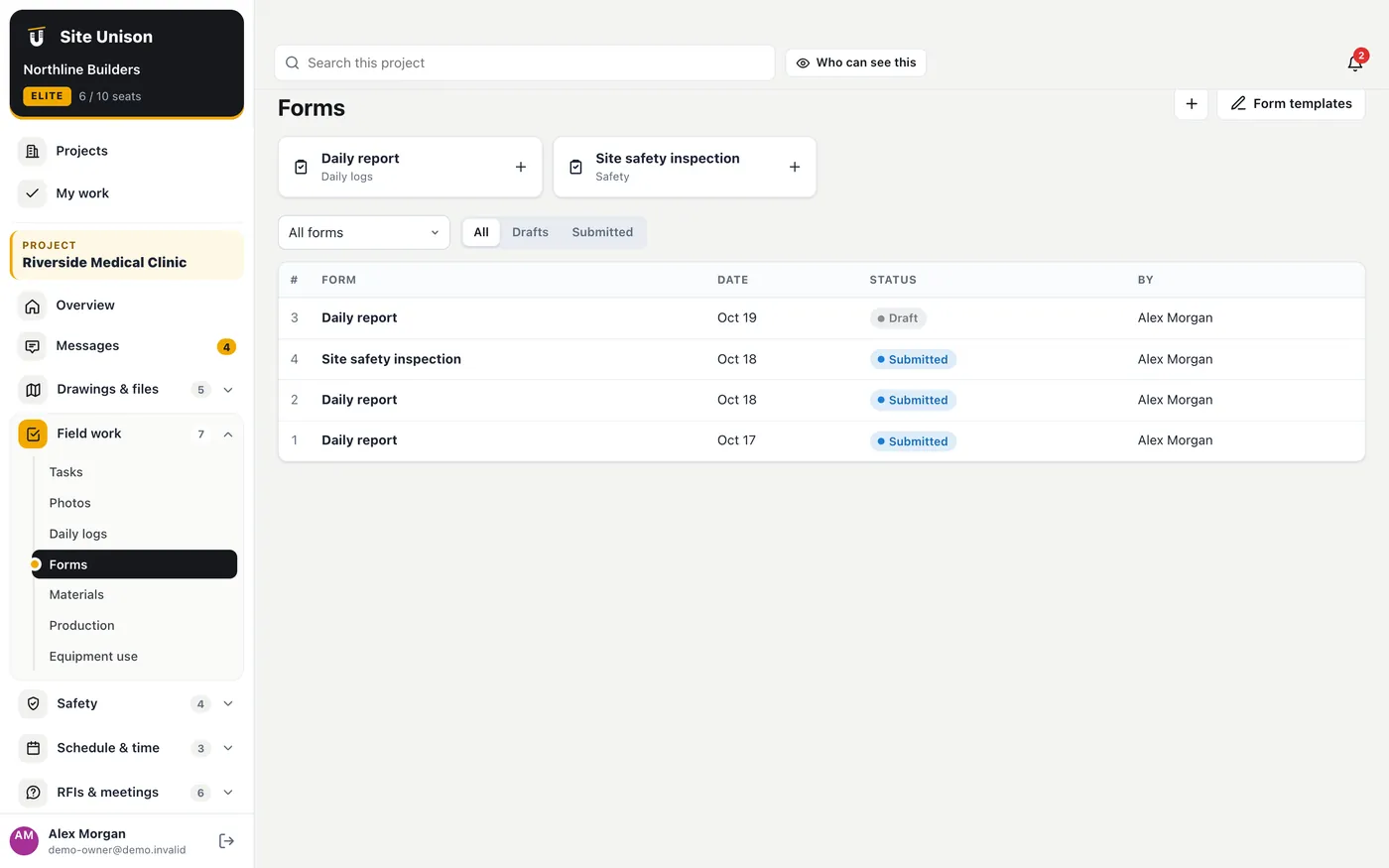
Fill in your company's forms on site: toolbox talks, pre-use equipment checks, pre-pour checklists and more, with photos and signatures. Templates are built once under Company → Forms and used on every project.
How to use it
Open Forms, click New form and pick a template.
Fill in the fields, add photos and signatures, and submit. Each form exports as a PDF.
Materials
WhereField work → Materials
PlanPro
WhoOwner, project managers and superintendents
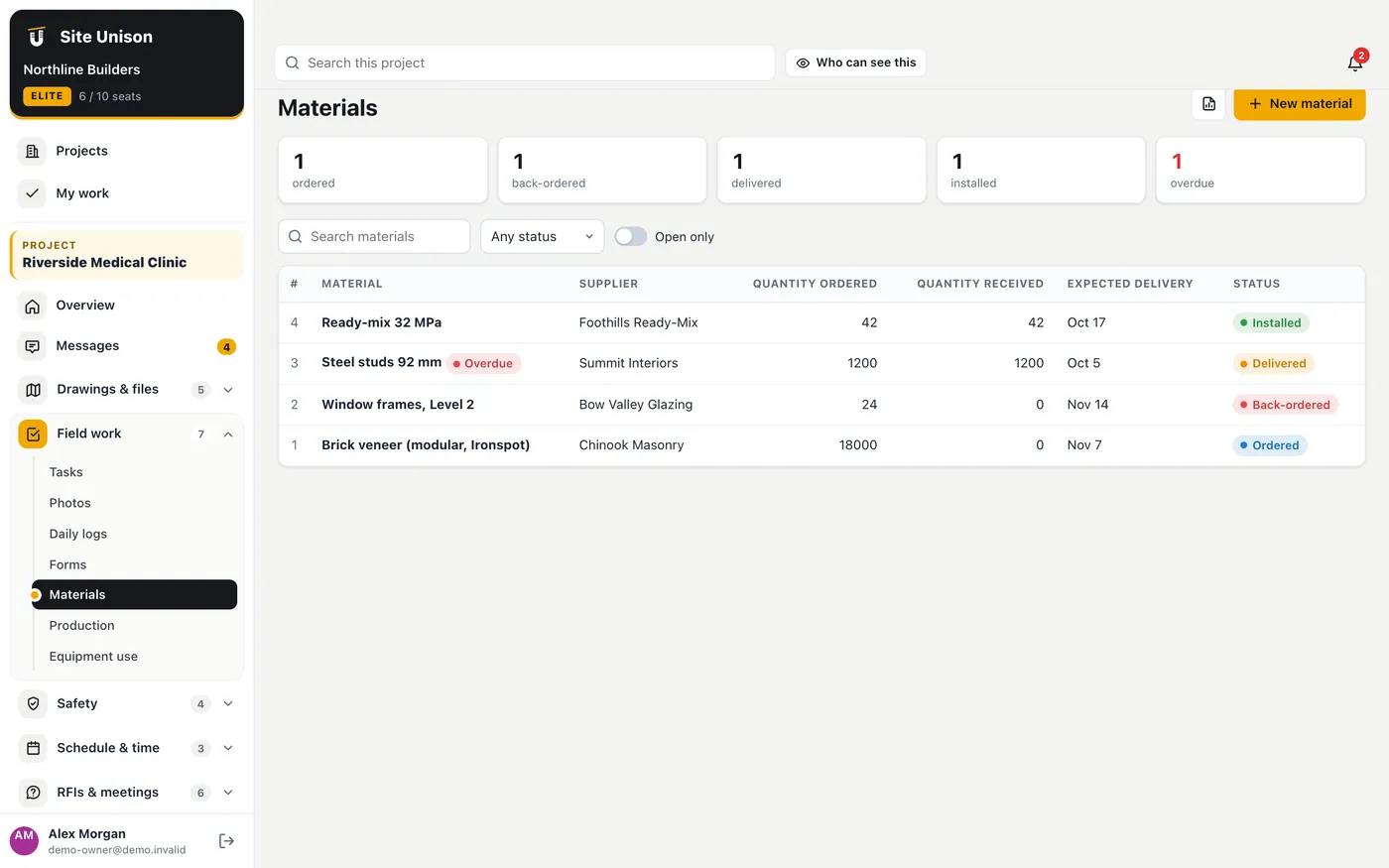
Track materials from order to installation: quantity ordered and received, supplier, needed-by and expected dates, and where it is stored, with delivery tickets attached.
How to use it
Open Materials and add an item with the supplier, quantities and dates.
When it arrives, update the quantity received and attach the delivery ticket. Late items stand out.
Production
WhereField work → Production
PlanElite
WhoOwner, project managers and superintendents
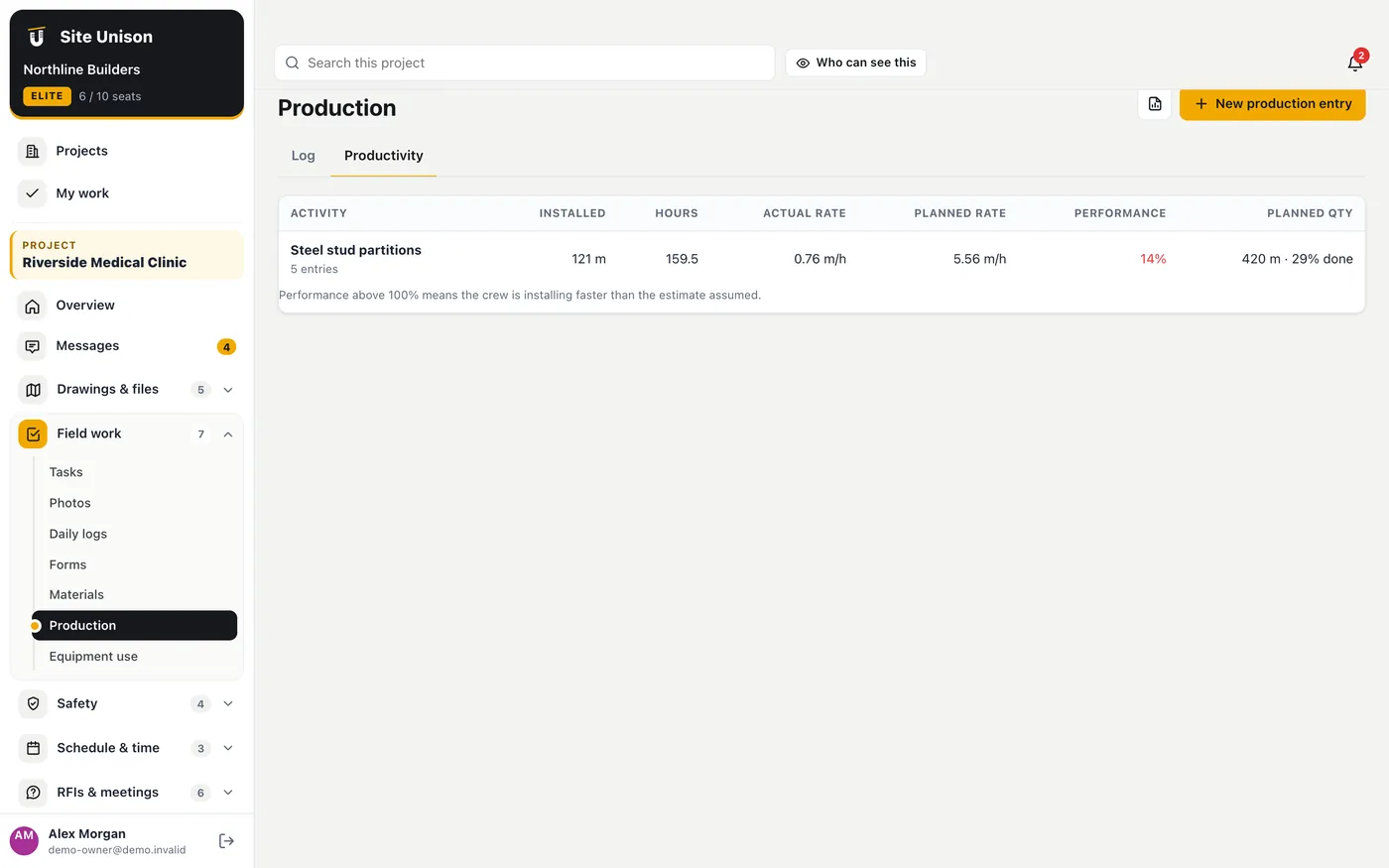
Record quantities installed and crew hours each day by activity. The Productivity tab compares units per hour with the estimate, so you see early if a crew is faster or slower than planned.
How to use it
Open Production and add the day's quantity, unit, crew and hours.
Open the Productivity tab to see each activity against the estimate.
Equipment use
WhereField work → Equipment use
PlanElite
WhoOwner, project managers and superintendents
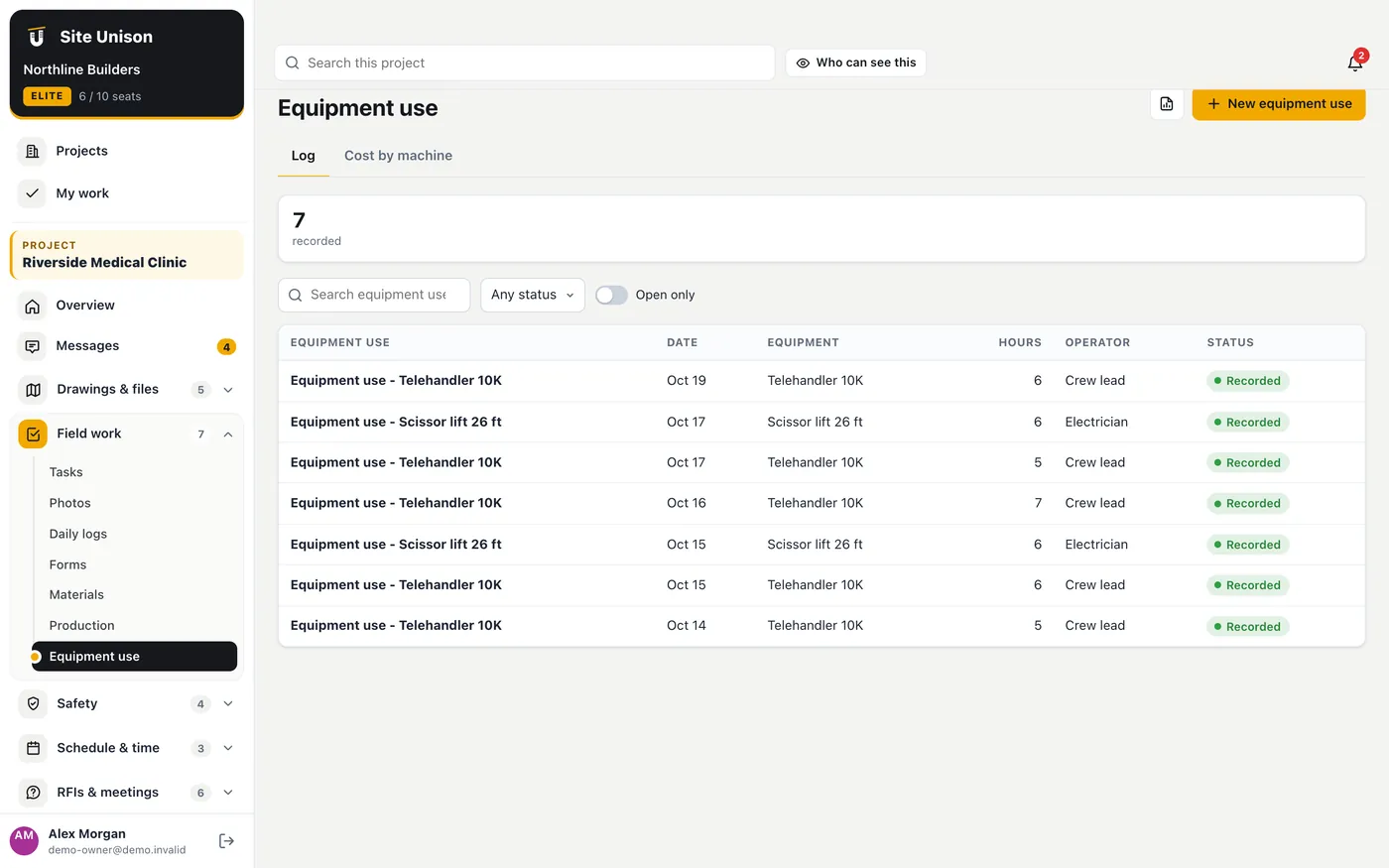
Log hours for each piece of equipment on the project. Costs are worked out from the hourly rate in the company equipment register.
How to use it
Open Equipment use, pick the equipment and enter the hours and operator.