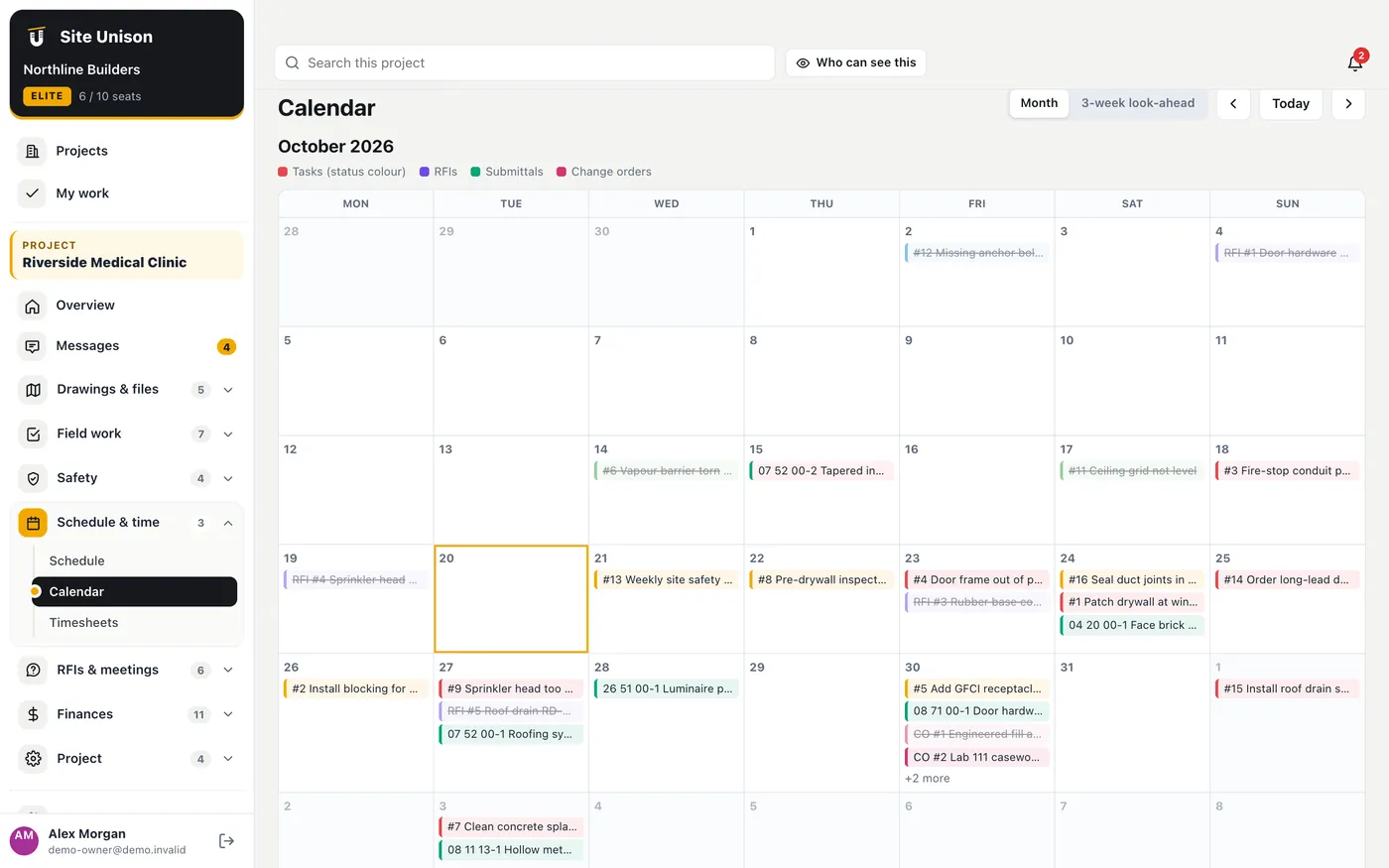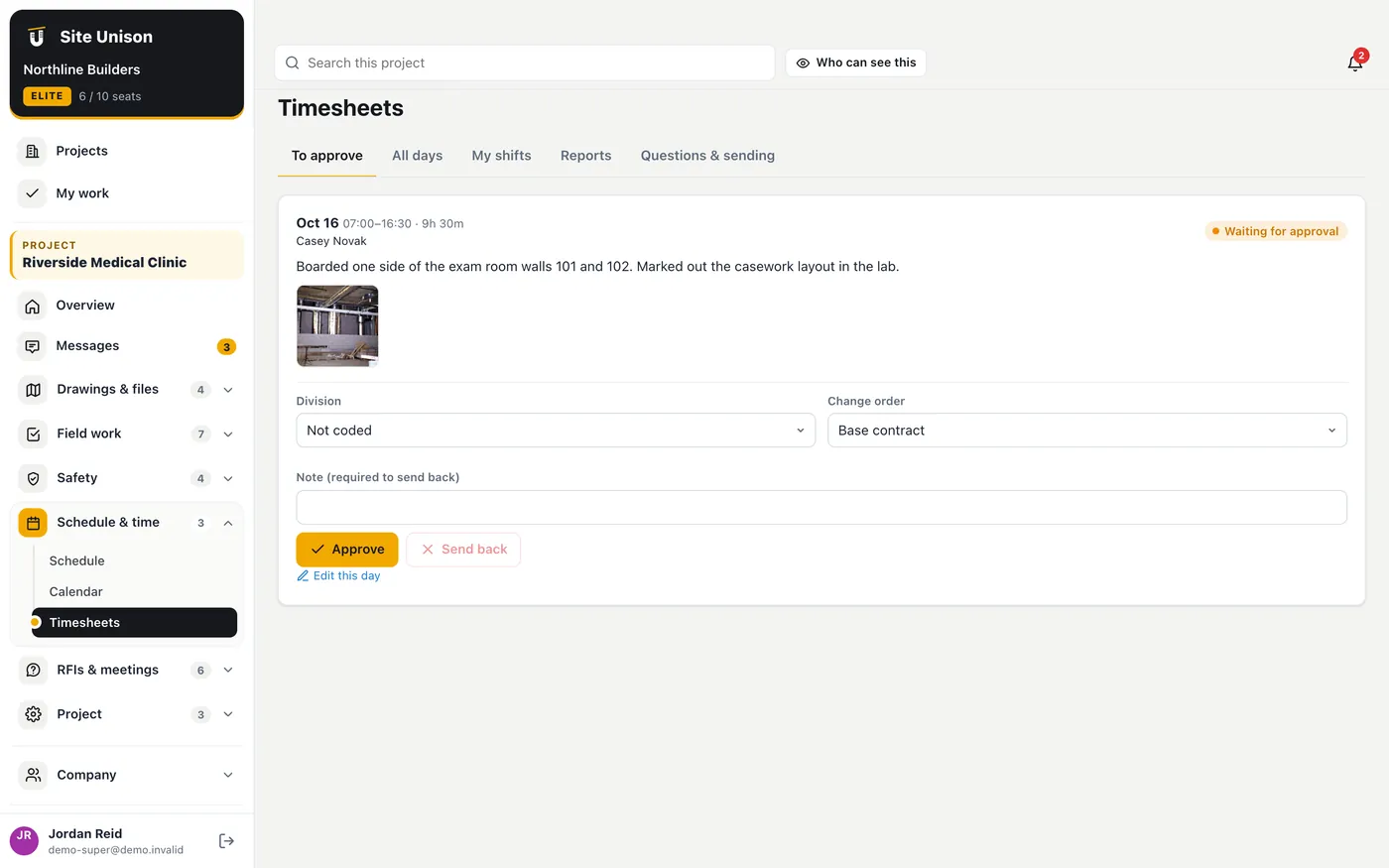
Schedule and critical path
A Gantt schedule with links between tasks, the critical path, float, a forecast finish from actual progress, a look-ahead for the field and a 3D build-up that shows what should be standing on any date. Import from Microsoft Project (XML or CSV) and export back.
How to use it
- Open Schedule. Click Import to bring in a Microsoft Project XML or CSV, or Add task.
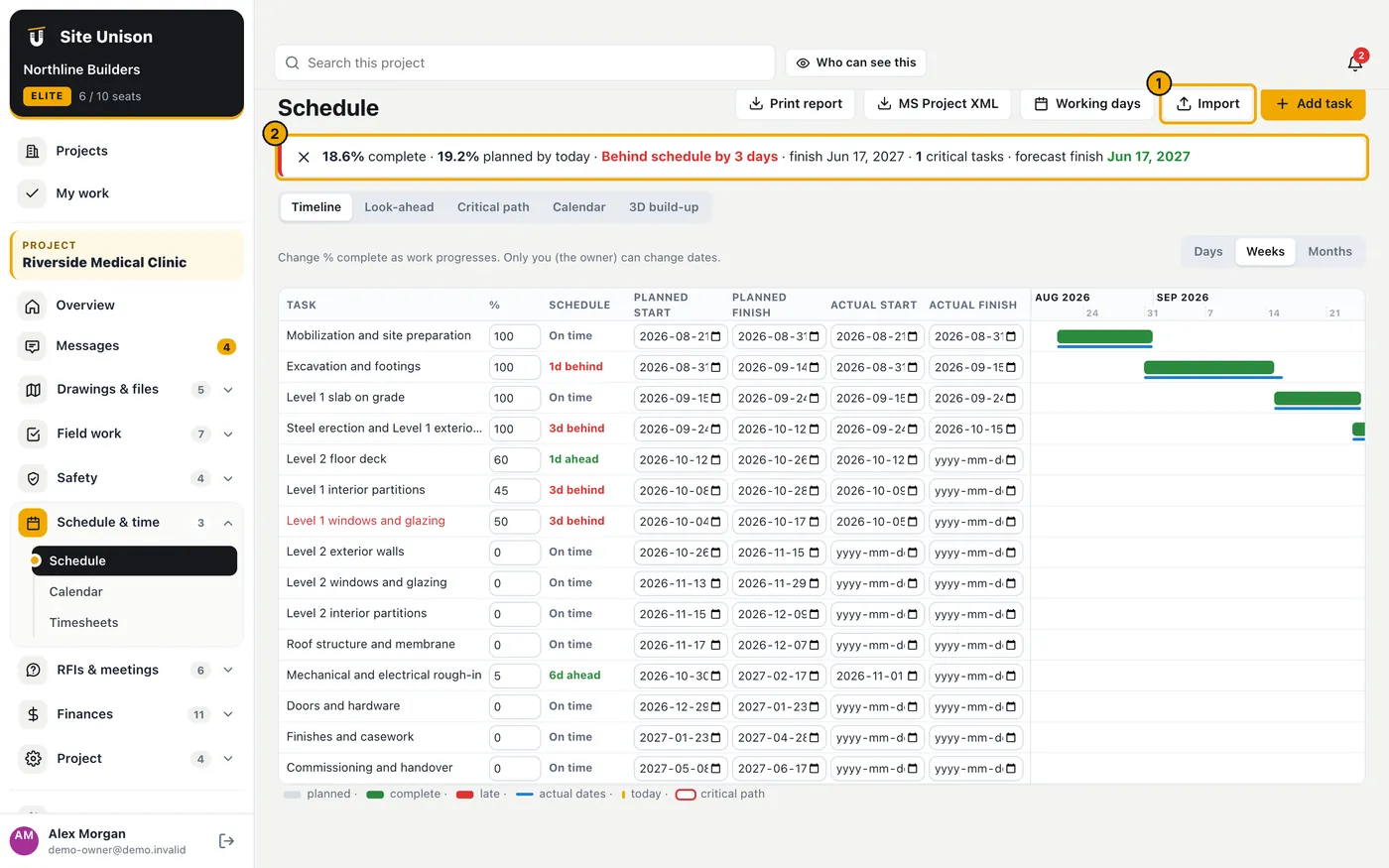
- Update % complete as work progresses. The banner shows planned vs actual and the forecast finish.
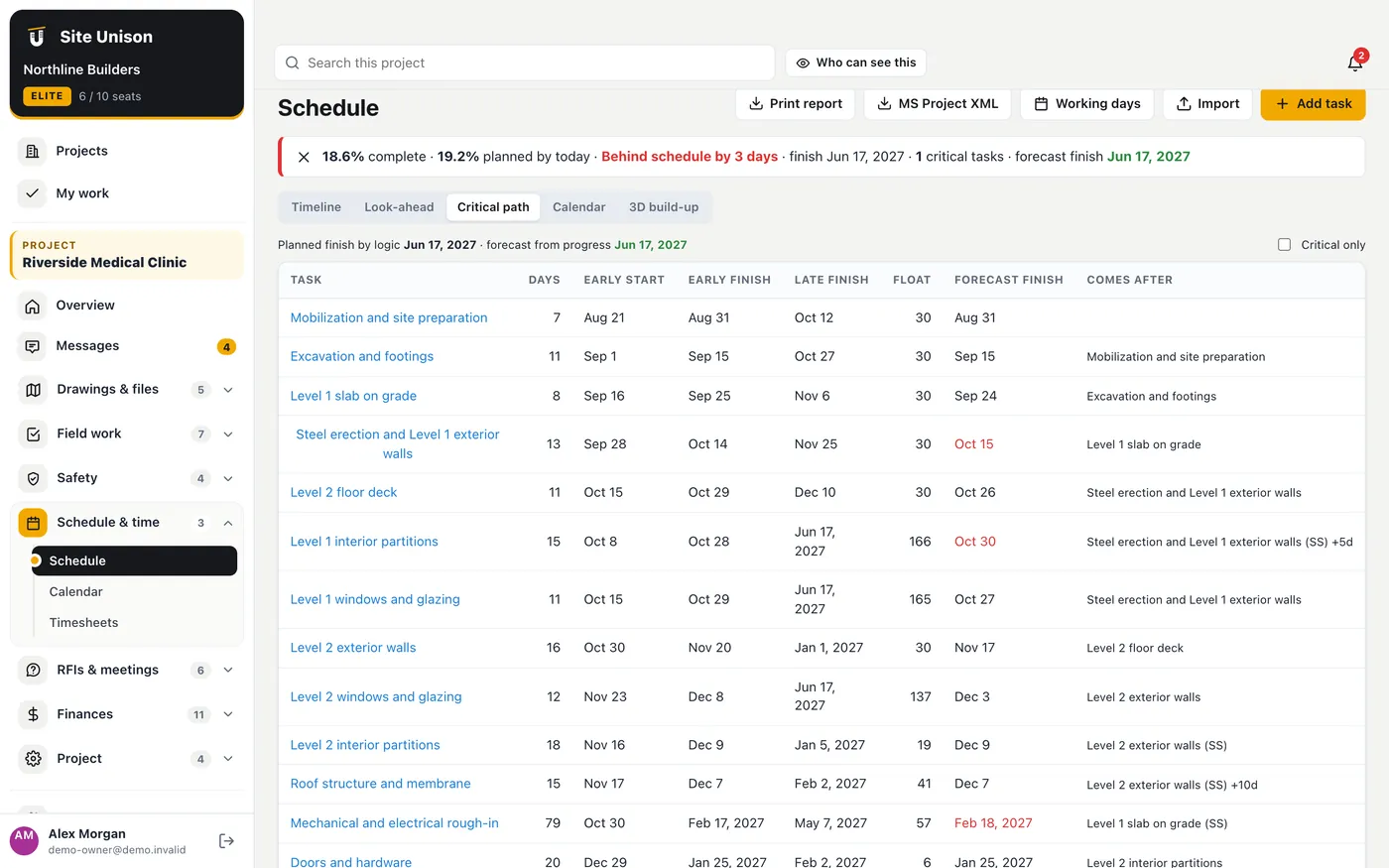
- Open Critical path to see the tasks that drive the finish date and the float on every task.
- Open Look-ahead and pick 2 to 6 weeks for a printable plan for the field.
- Open 3D build-up. Choose the Model: the project's BIM model (the default) or a 3D render made from your CAD PDFs. Drag the date slider: each part appears only from the date the task that builds it was actually finished, so concrete finished on June 1 does not show before June 1. Future dates follow the plan.
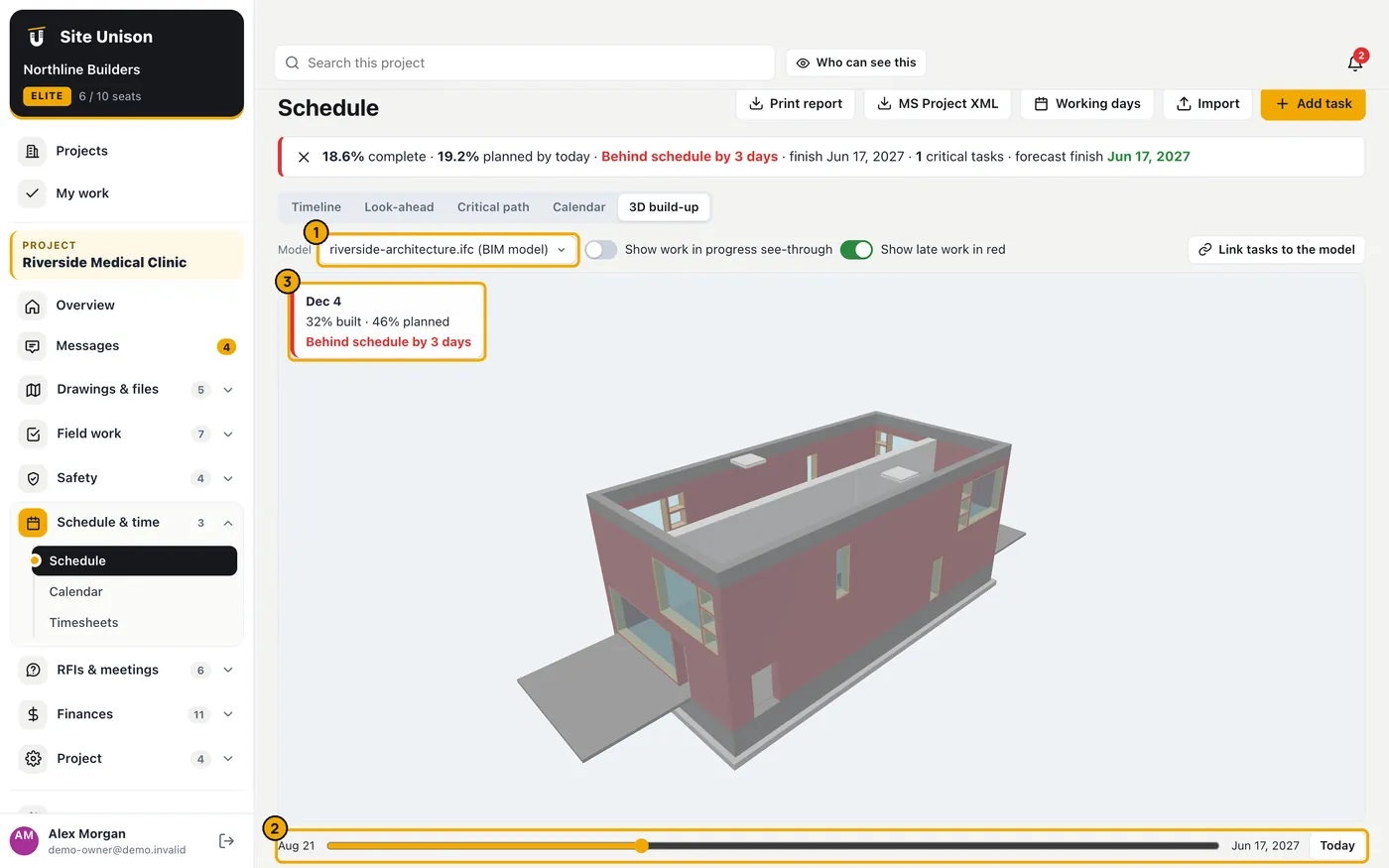
- Switch on Show work in progress see-through to see work under way, and Show late work in red to flag work past its planned finish. Parts not linked to any task show faint.
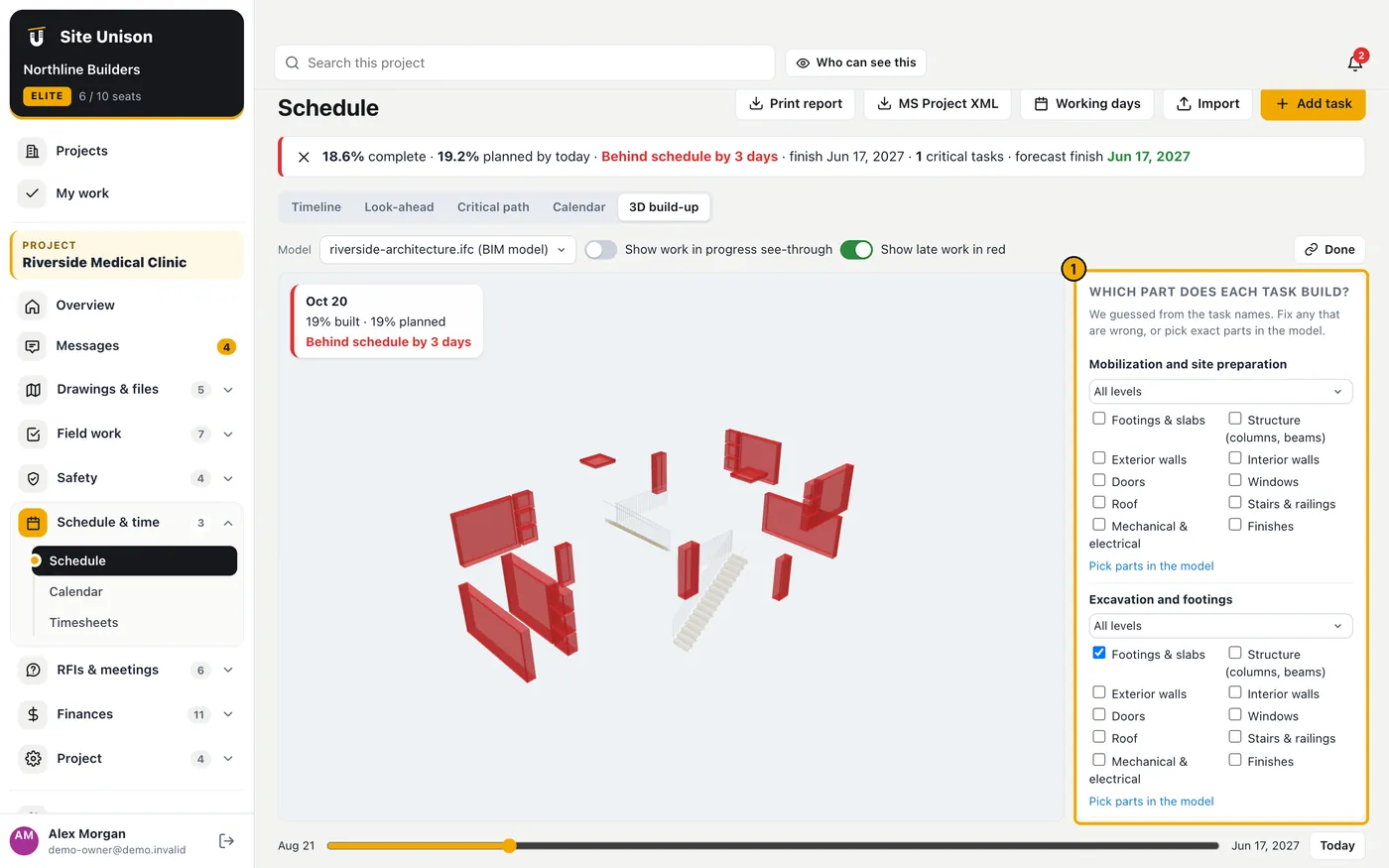
- Owners and project managers click Link tasks to the model to check which level and parts each task builds (we guess from the task names). On a BIM model, click Pick parts in the model under a task and click the exact elements it builds.
- Working days sets the working week and holidays (Canadian statutory holidays in one click). MS Project XML exports the schedule.