WhereFinances → Estimates
PlanElite
WhoOwner and project managers
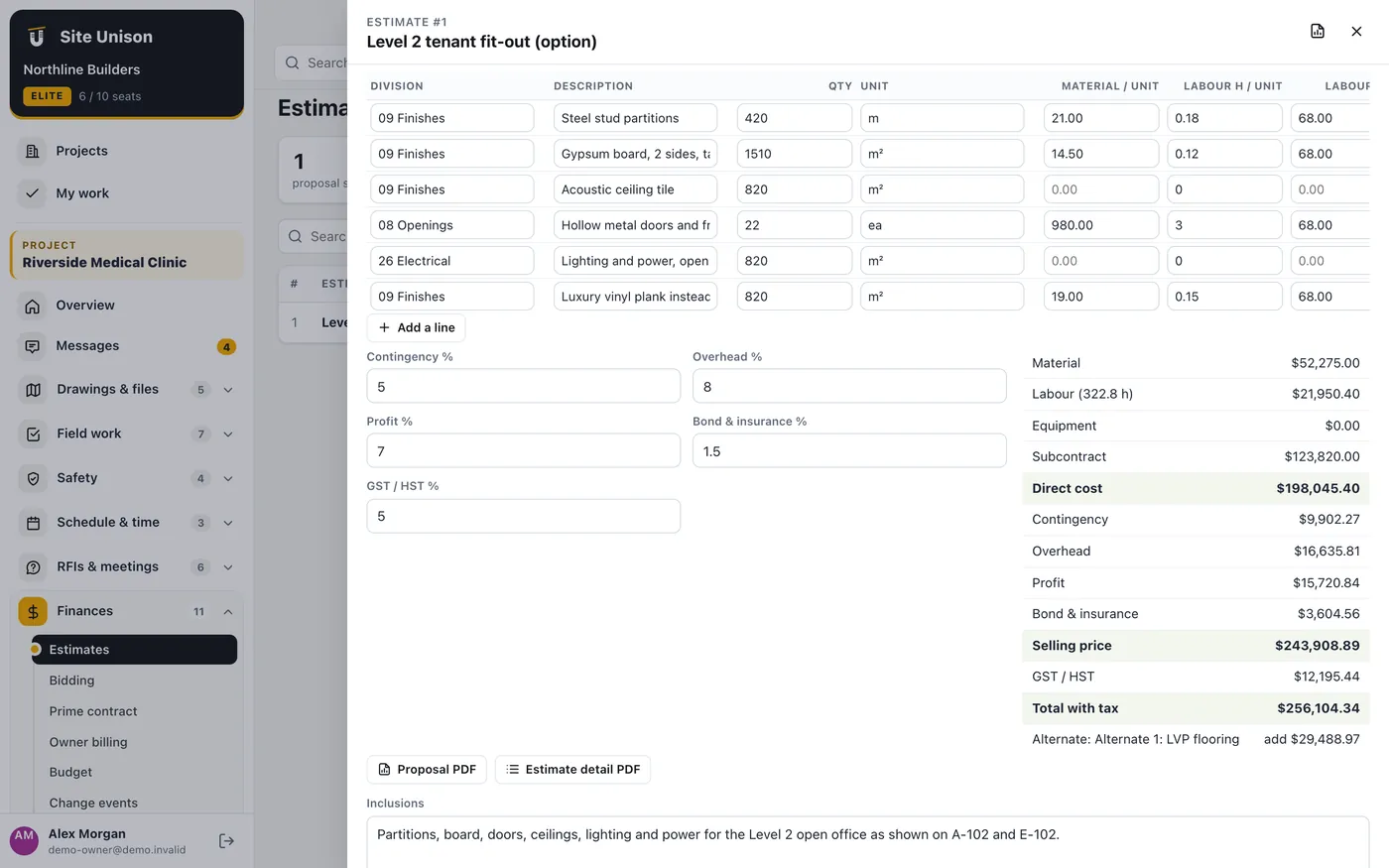
Build estimates from your cost catalog, assemblies and takeoff quantities, with markups, alternates, a proposal PDF and revisions. Send the accepted estimate to the budget in one click.
How to use it
Open Estimates and add one. Add lines from the cost catalog or from plan takeoffs.
Set contingency, overhead, profit, bond and tax. Open the proposal PDF, save a revision, and click Send to the budget when it is accepted.
Bidding and leveling
WhereFinances → Bidding
PlanElite
WhoOwner and project managers
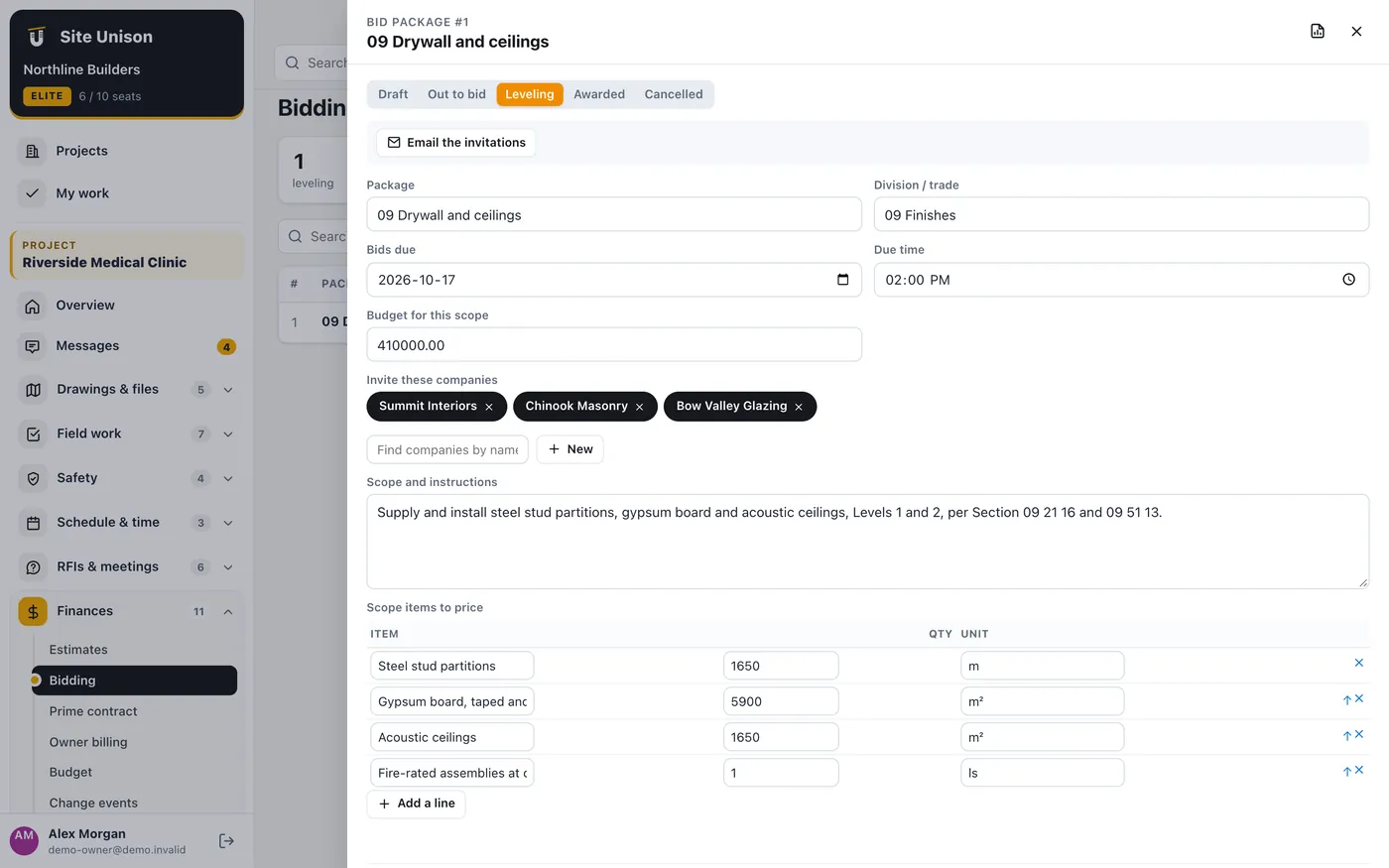
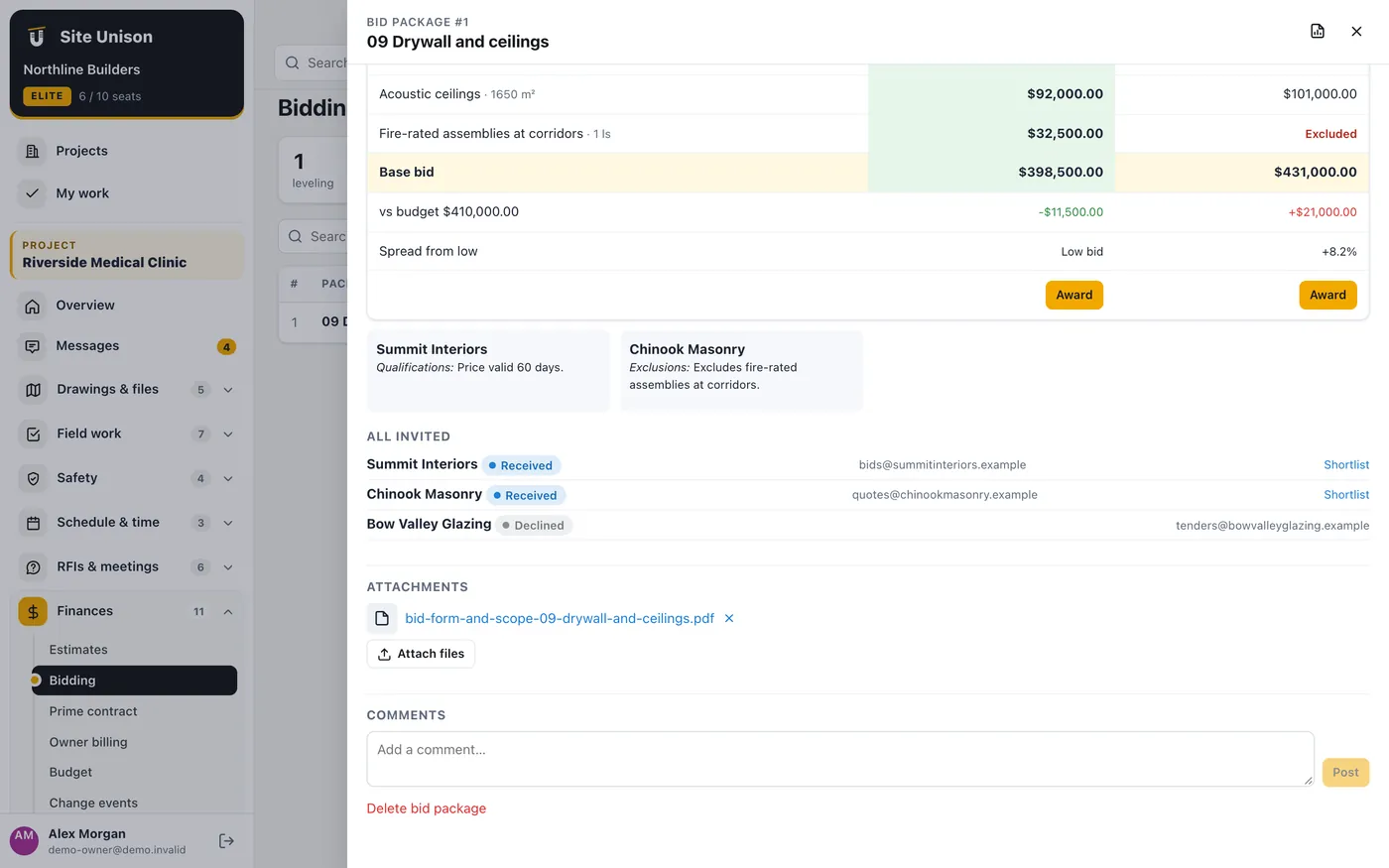
Bid packages with scope, documents and items to price. Invited subcontractors bid online from a private link; bids are leveled side by side and the winner is awarded as a subcontract.
How to use it
Open Bidding, create a package and choose the companies to invite, then click Email the invitations.
Bids appear as they come in. Compare prices, exclusions and the spread from the low bid in the leveling table, then click Award.
Prime contract
WhereFinances → Prime contract
PlanElite
WhoOwner and project managers
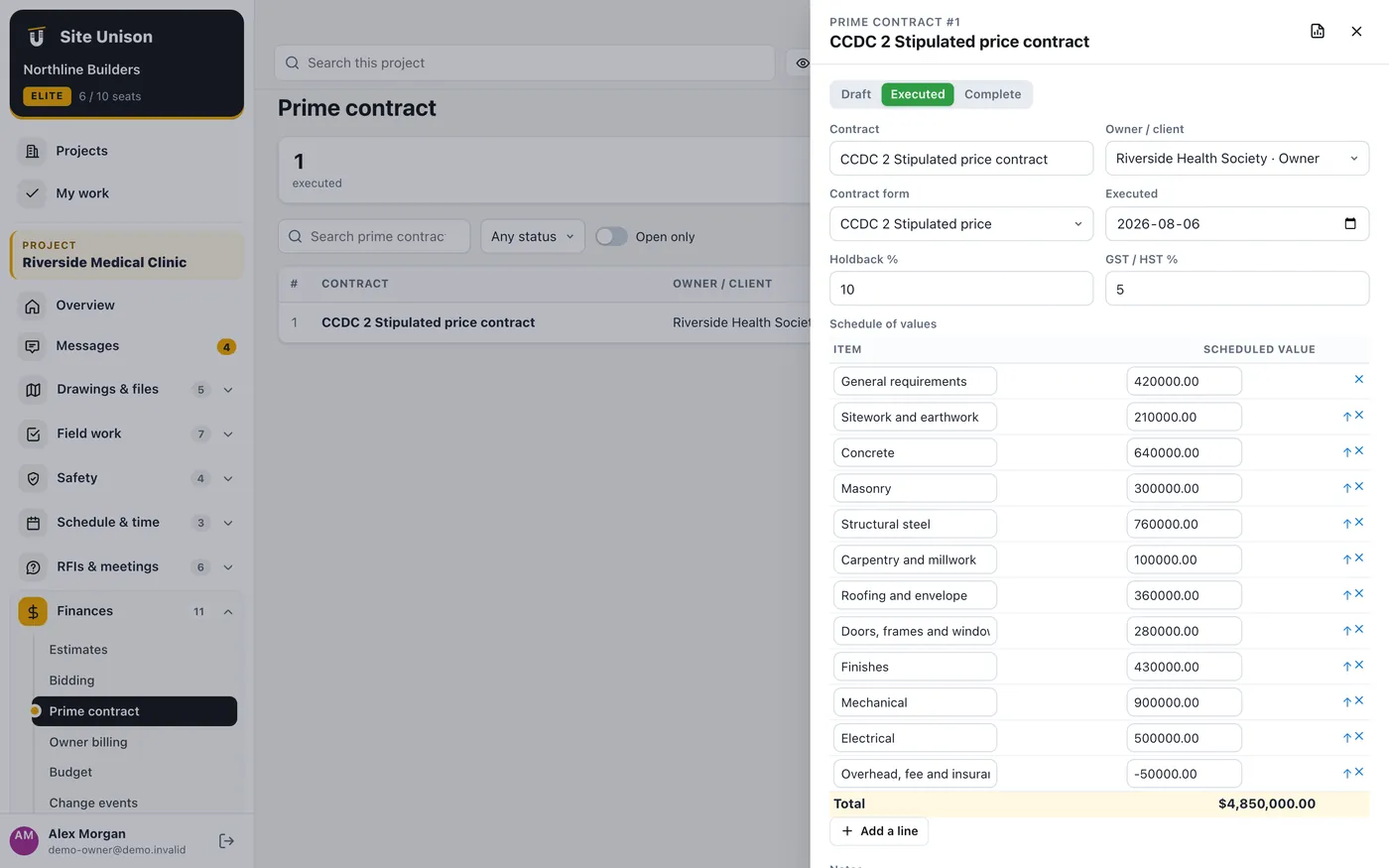
The owner contract: form (CCDC 2, 3, 4, 5, AIA or custom), value, holdback and tax percentages, and the schedule of values that progress billing uses.
How to use it
Open Prime contract, add the contract and enter the schedule of values lines.
Owner billing (progress billing)
WhereFinances → Owner billing
PlanElite
WhoOwner and project managers
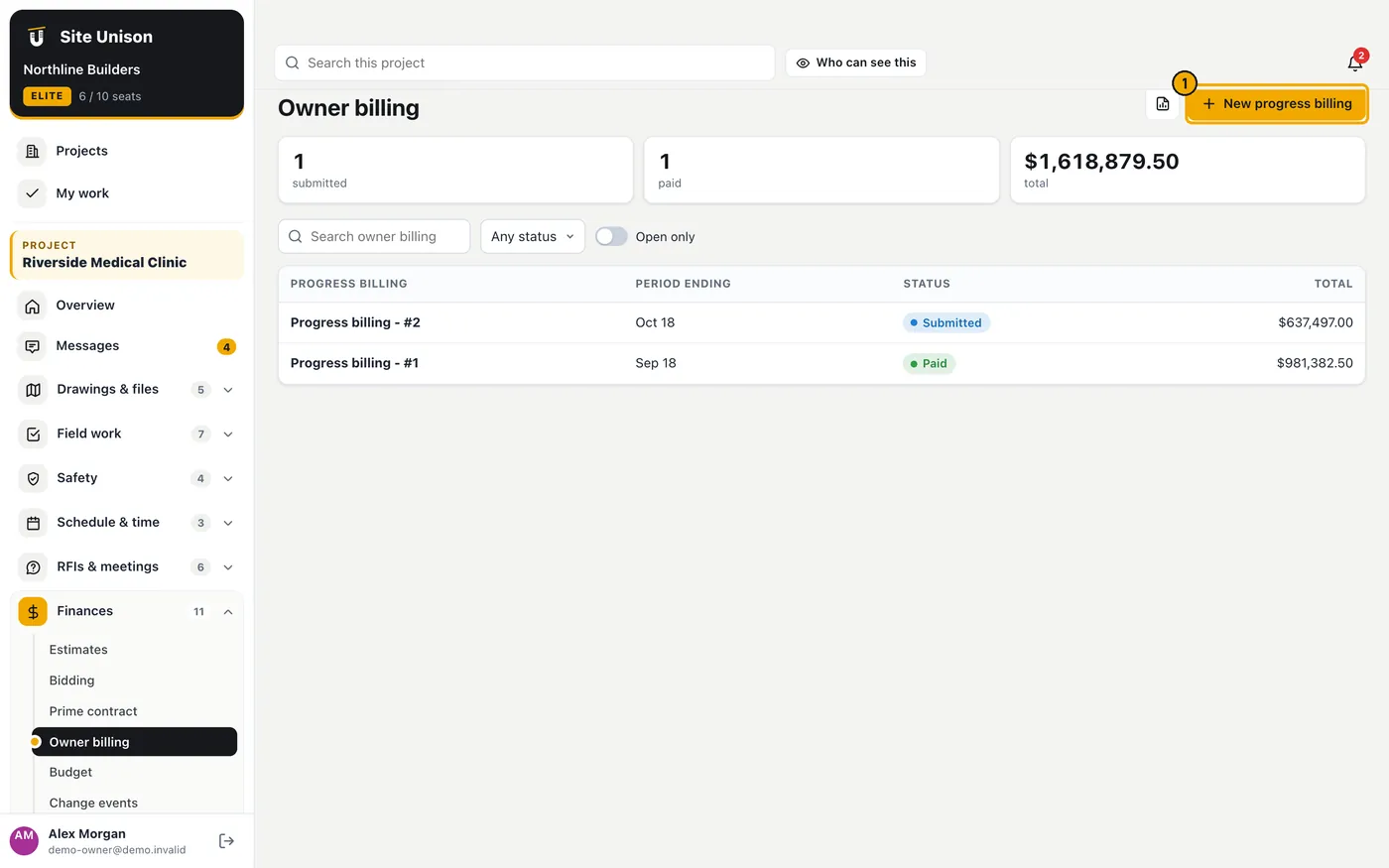
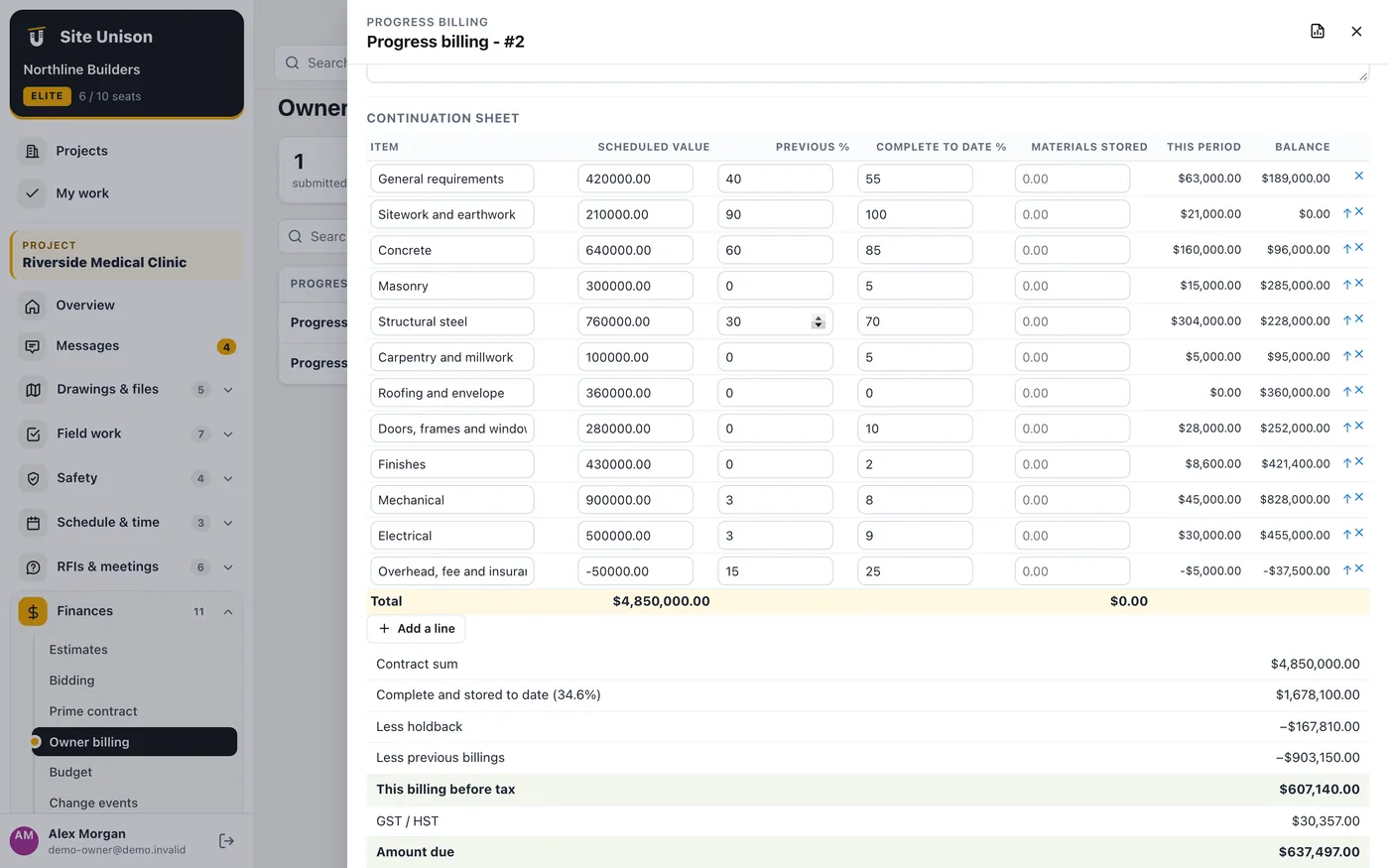
Monthly progress billings from the schedule of values: percent complete this period, materials stored, holdback, GST/HST and the amount due, worked out as you type, with a PDF for the payment certifier. When QuickBooks is connected, each billing can be synced as an invoice.
How to use it
Open Owner billing, add a billing and click Load lines from the prime contract.
Enter the percent complete to date for each line; the totals update as you type.
Mark it Submitted, then Certified and Paid. With QuickBooks connected, use Sync to QuickBooks on the billing.
Budget
WhereFinances → Budget
PlanElite
WhoOwner and project managers
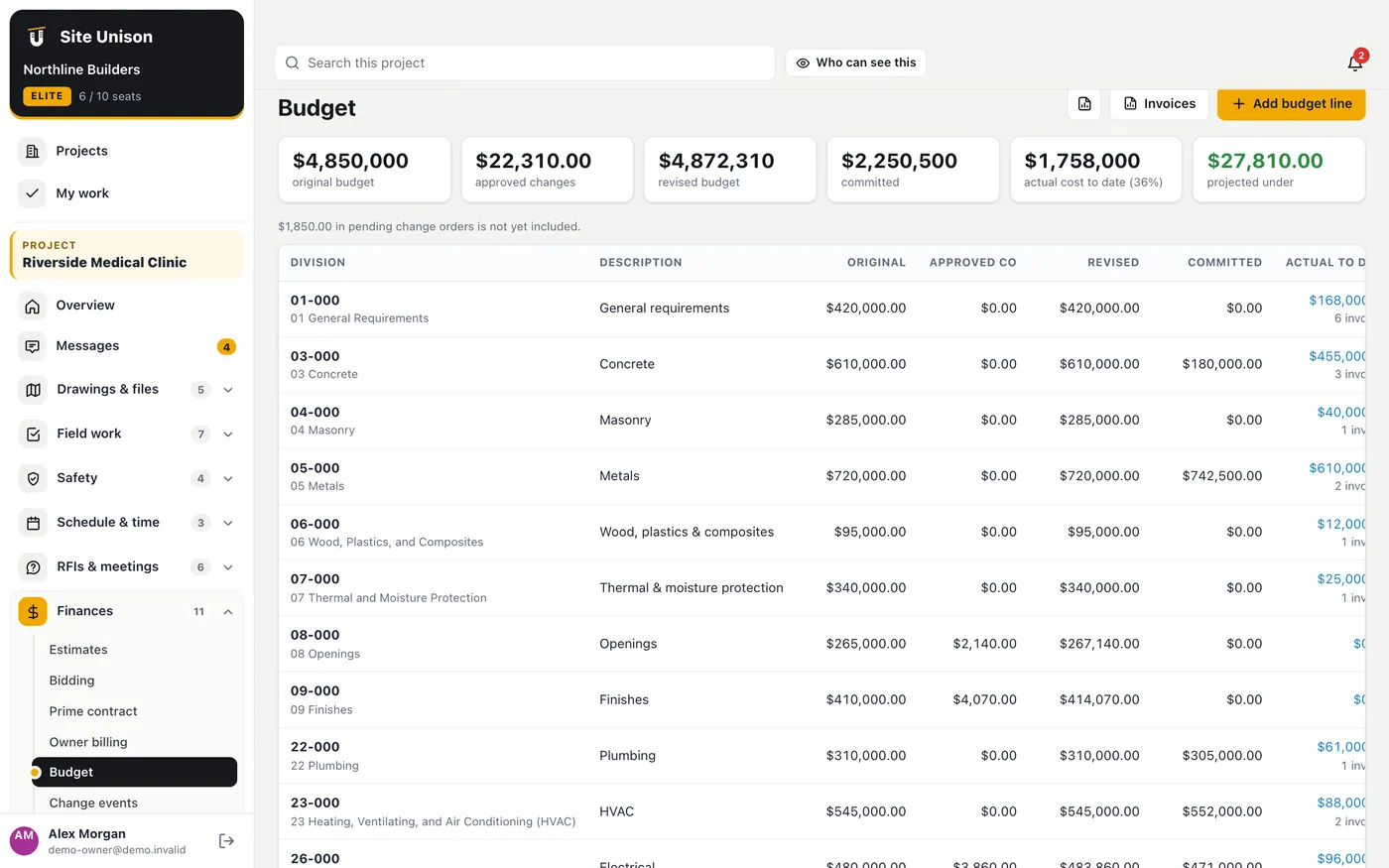
Budget lines by division with original budget, approved and pending changes, committed cost from subcontracts, actual cost from accepted invoices, the forecast and variance.
How to use it
Open Budget. Add lines by division, or send an estimate to the budget.
Click a line to see the invoices and commitments behind it.
Change events
WhereFinances → Change events
PlanElite
WhoOwner and project managers
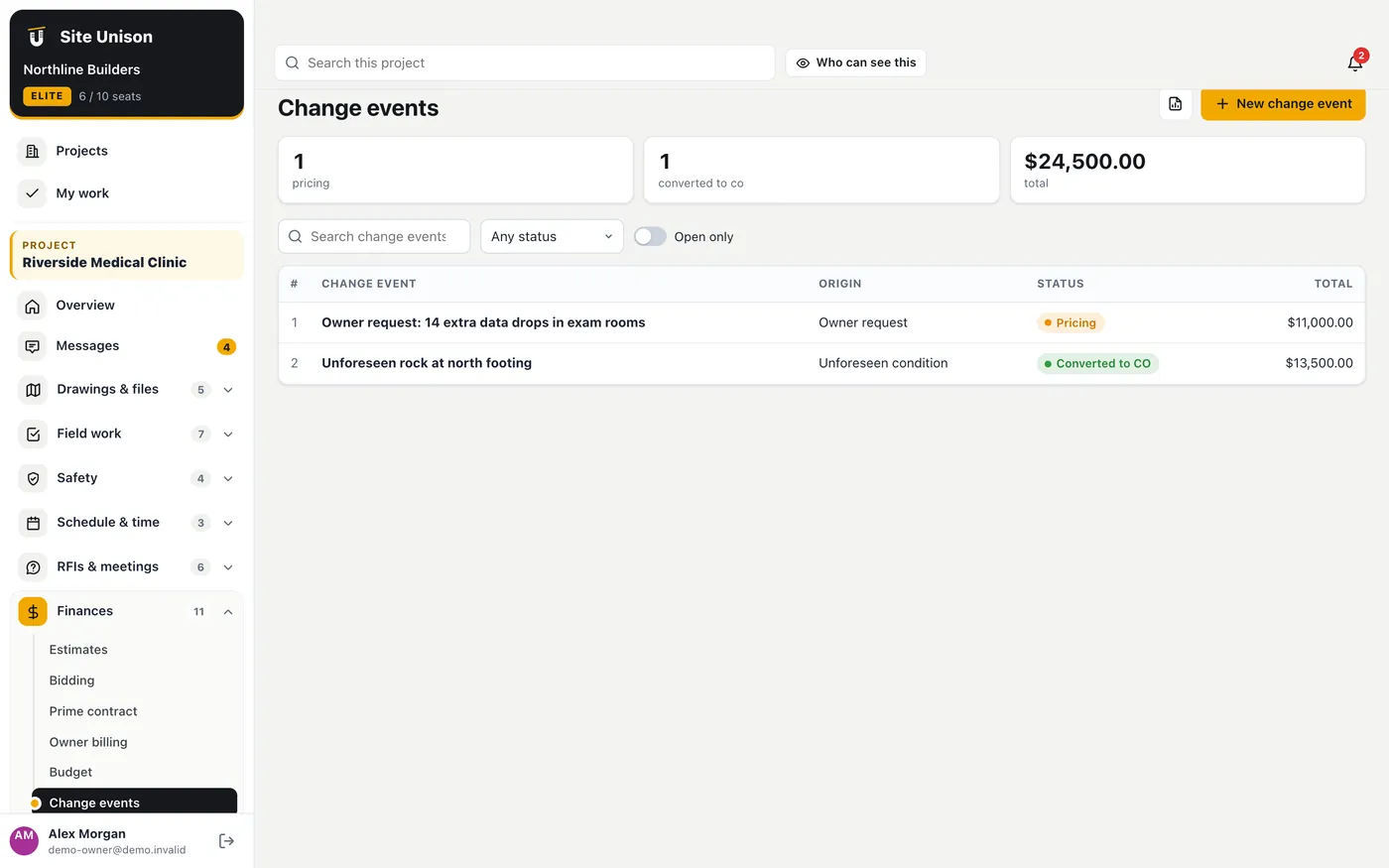
Capture possible changes early, price them and convert them to change orders.
How to use it
Open Change events, add the event with its origin and price, attach the quote, and click Make a change order when it is agreed.
Change orders
WhereFinances → Change orders
PlanElite
WhoOwner and project managers
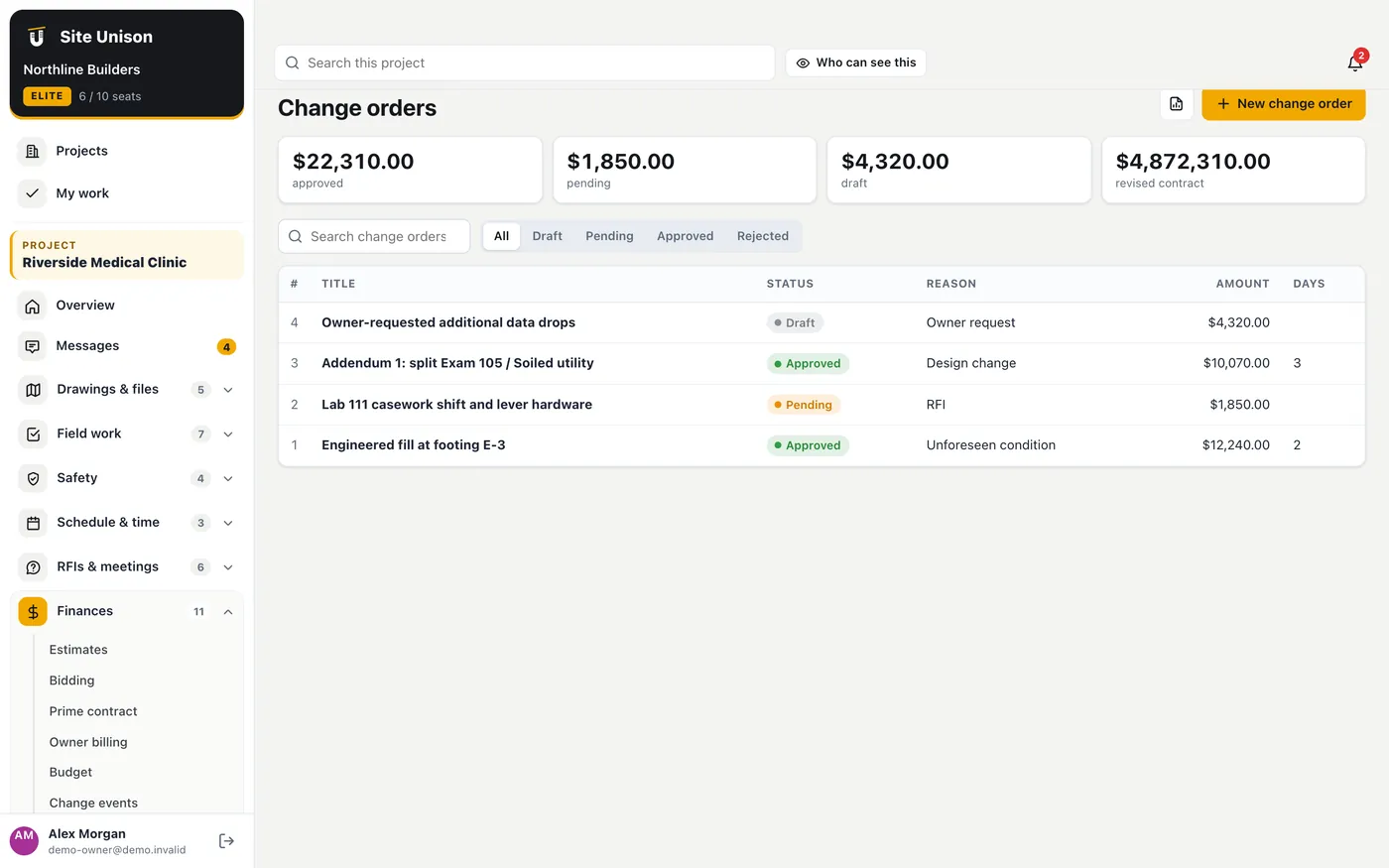
Change orders with line items, schedule impact, backup and approval; approved amounts update the budget.
How to use it
Open Change orders, add one with its lines and backup, submit it and approve it.
Subcontracts & POs
WhereFinances → Subcontracts & POs
PlanElite
WhoOwner and project managers
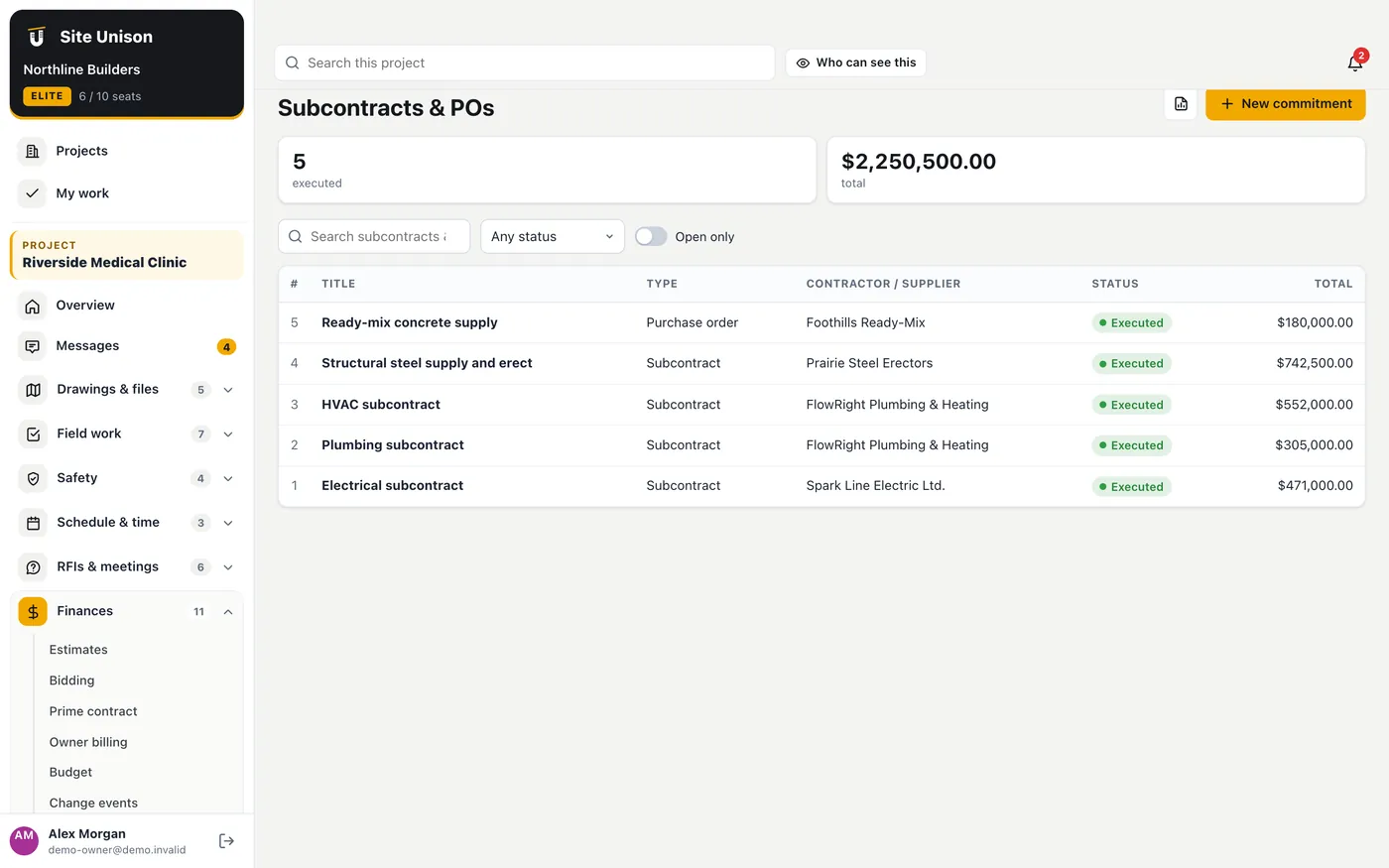
Subcontracts and purchase orders with a schedule of values tied to budget lines; executed commitments update committed cost.
How to use it
Open Subcontracts & POs, add one (or award a bid), link its lines to the budget and mark it Executed.
Invoices (subcontractor invoices)
WhereFinances → Invoices
PlanElite
WhoOwner and project managers; contractors submit their own
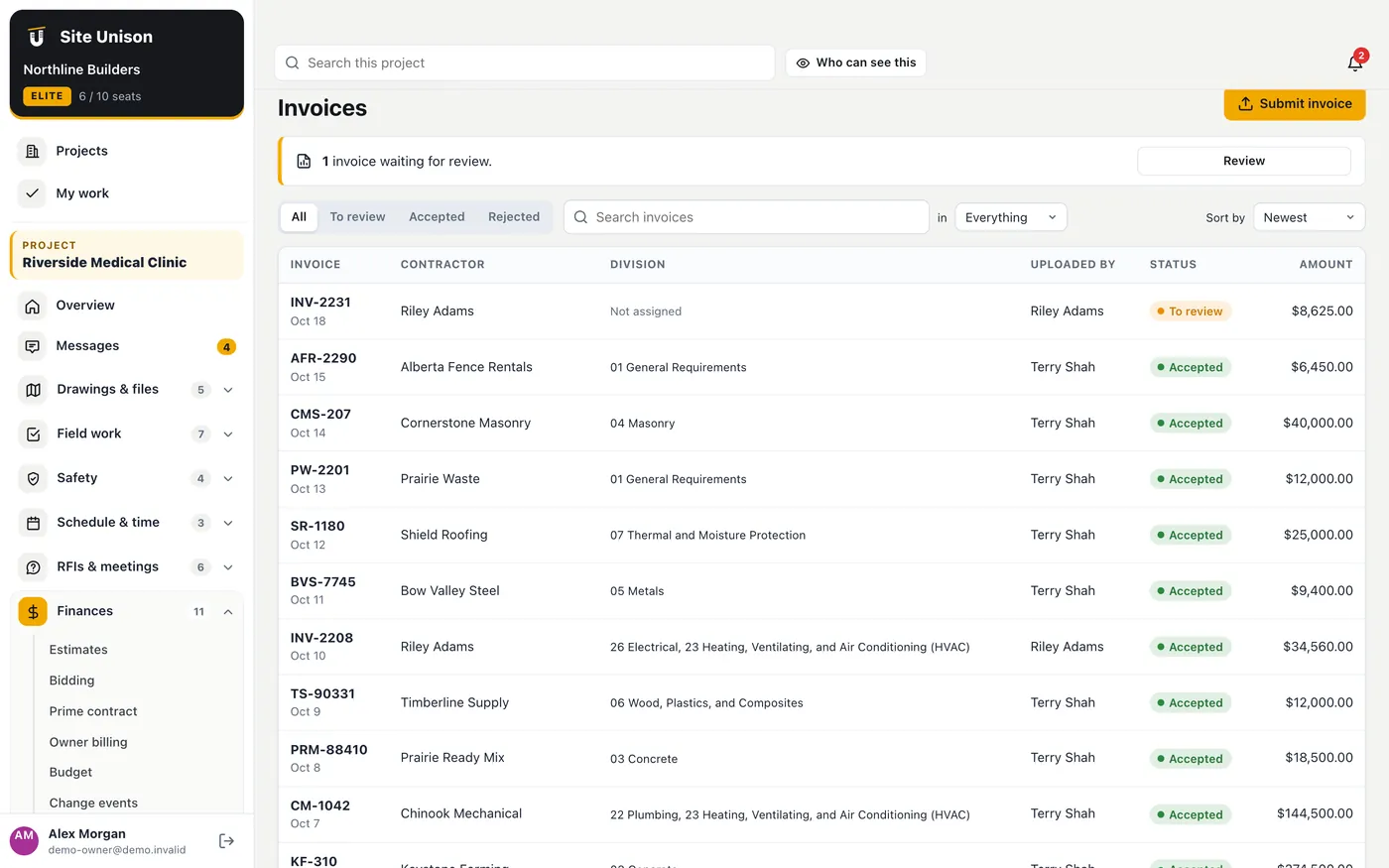
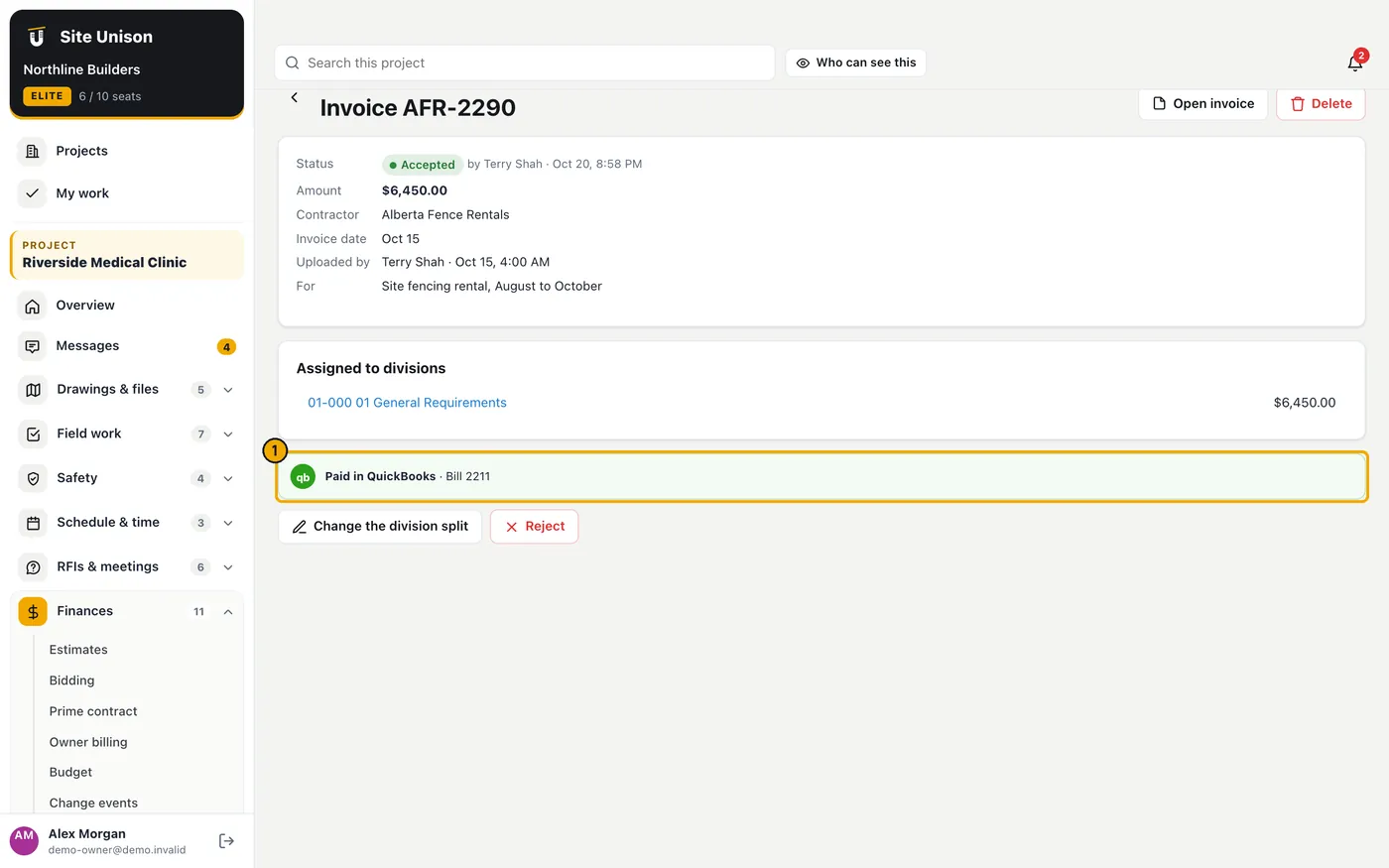
Contractors upload invoices; project managers accept them and split them across budget divisions, or reject them with a reason. Accepted invoices are the actual cost. With QuickBooks connected they are sent as bills.
How to use it
Contractors open Invoices, click Submit invoice and attach the PDF or photo.
The project manager opens it, clicks Accept and assign to divisions, splits the amount and accepts it, or clicks Reject with a reason.
With QuickBooks connected, the invoice shows its QuickBooks status and a Sync to QuickBooks button.
Payments
WhereFinances → Payments
PlanElite
WhoOwner and project managers
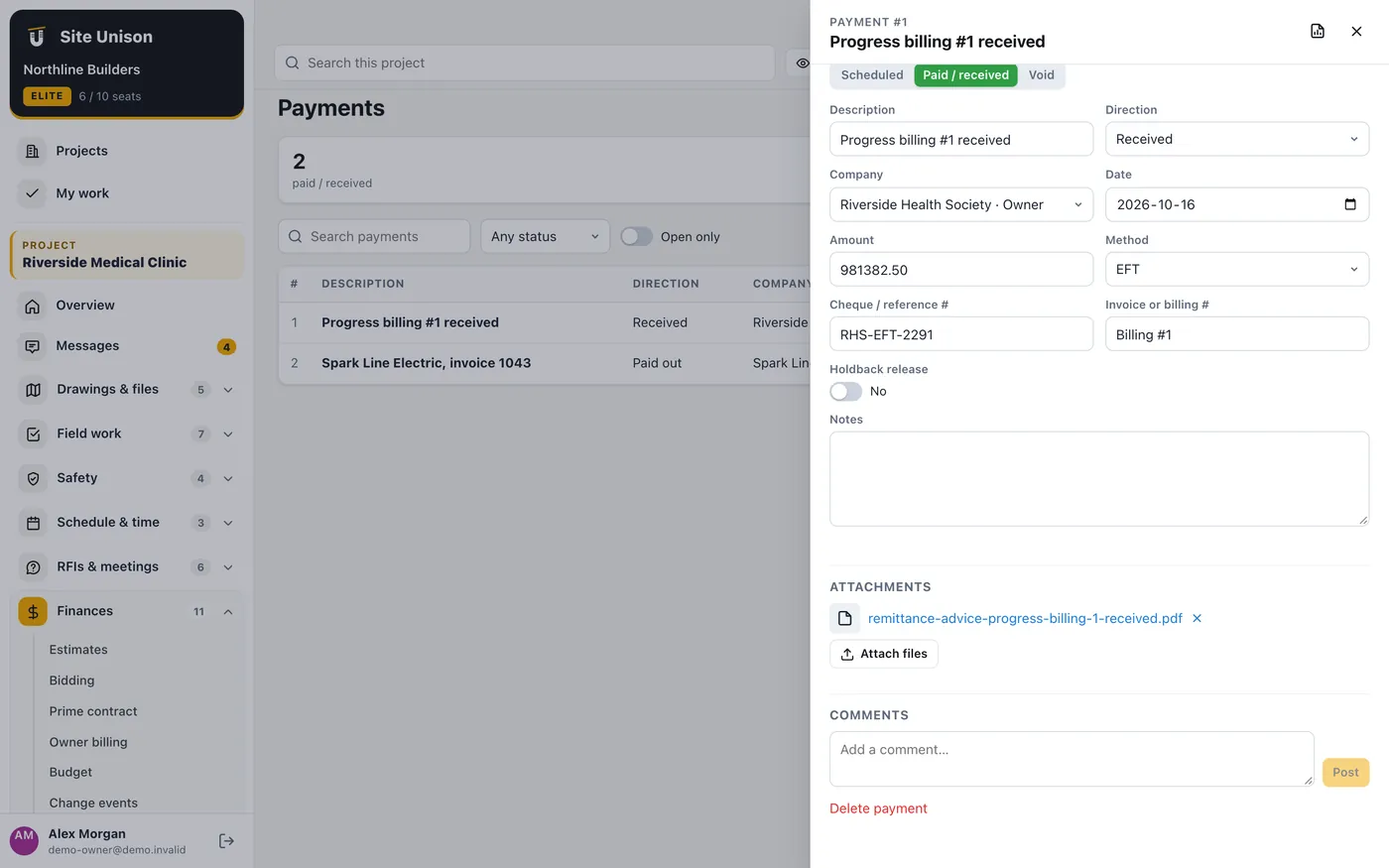
The payment ledger: payments made and received, method, reference and holdback releases. Payments made in QuickBooks are added here automatically.
How to use it
Open Payments, add a payment with the direction, company, amount and reference, and attach the receipt.
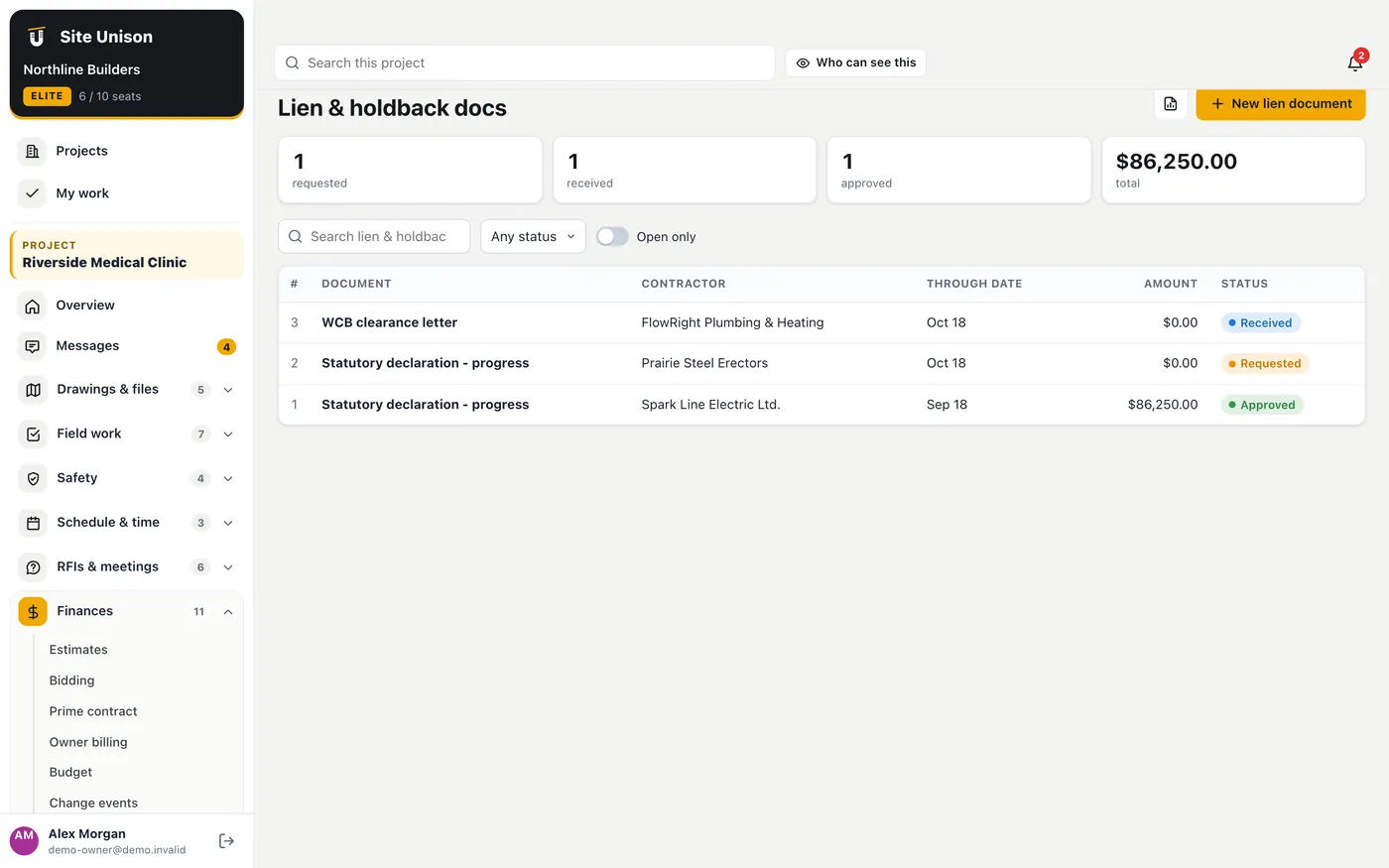
Statutory declarations, lien waivers and WCB clearance letters per contractor. Request them by email; contractors upload the signed document from a private link and you approve it.
How to use it
Open Lien & holdback docs, add a request for the contractor and click Request.
When it is received, open it, check the document and mark it Approved.