Team, reports, activity, settings, who can see what, people, company tools and your plan.
Team and seats
WhereProject → Team
PlanAll plans
WhoEveryone views; managers add people
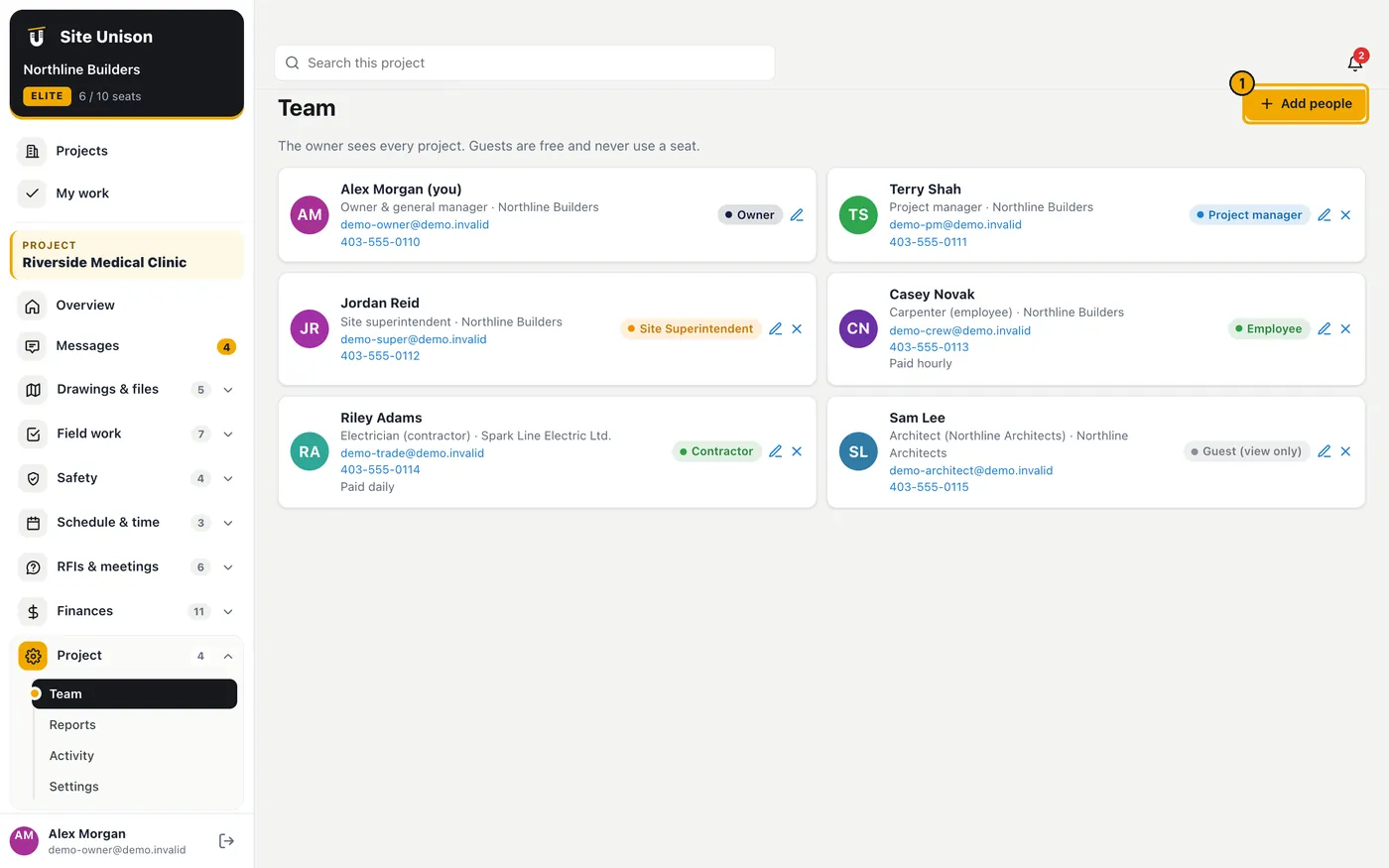
Who is on the project, their role and contact details. Add people from the company or invite new ones. The owner sees Add seats here, at the top of every screen and on the People page.
How to use it
Open Team. Click Add people (superintendents: Add employee).
Click Add seats to buy more seats; the price for the new total is shown before you confirm.
Who can see this
Where"Who can see this" at the top of each project screen
PlanAll plans (screens follow your plan)
WhoOwner, project managers and superintendents
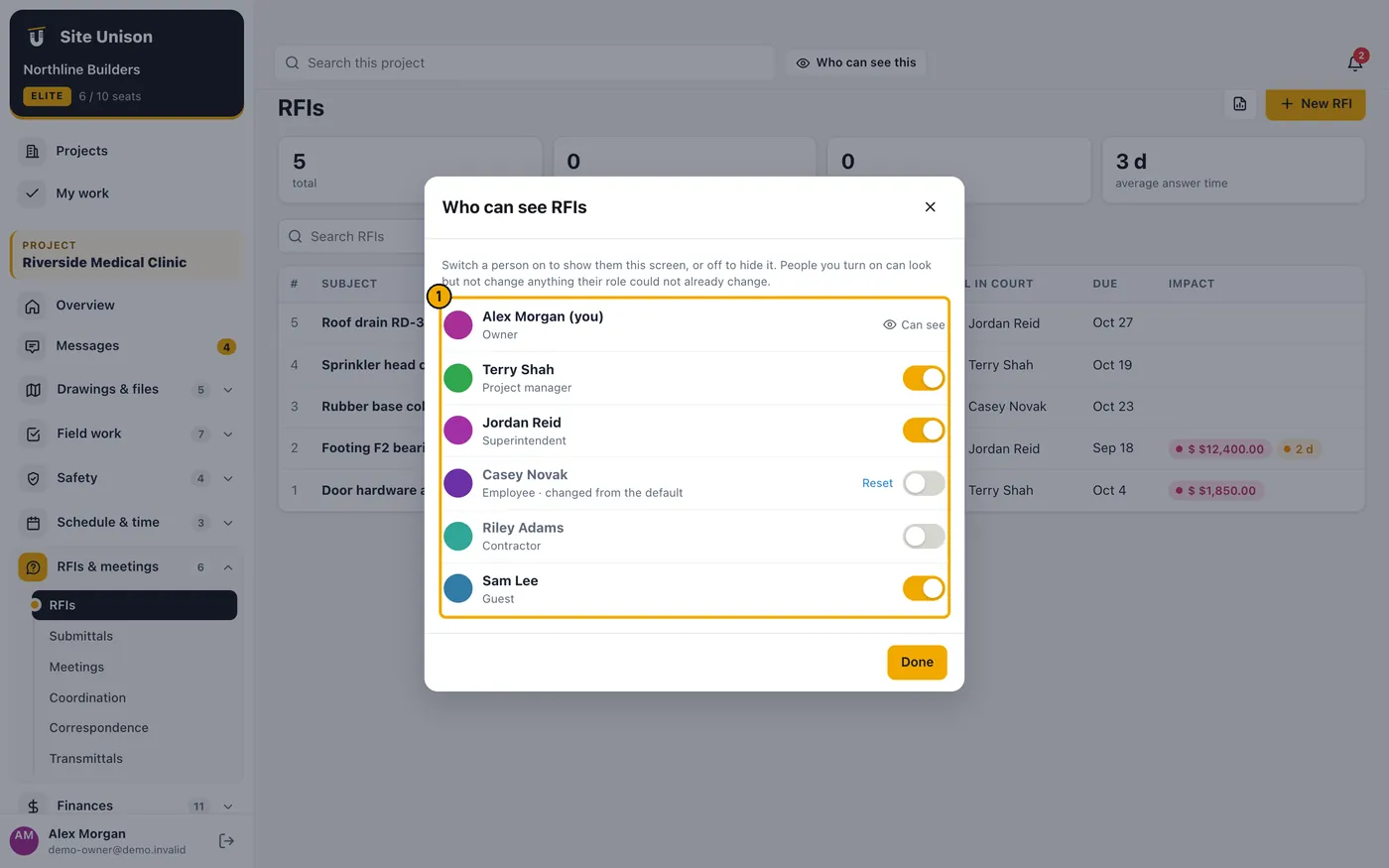
Every role has default screens. On any screen, Who can see this lets you switch that screen on or off for individual people: the owner for anyone, project managers for people below them, superintendents for employees, contractors and guests. You can only give a screen you can see yourself, and screens outside the company's plan are never shown. A screen switched on for someone is view-only unless their role could already change it.
How to use it
Open the screen, for example RFIs, and click Who can see this at the top.
Switch a person on or off. Reset returns them to their role's default. They are notified when they get access.
Reports
WhereProject → Reports
PlanPro
WhoOwner, project managers and superintendents
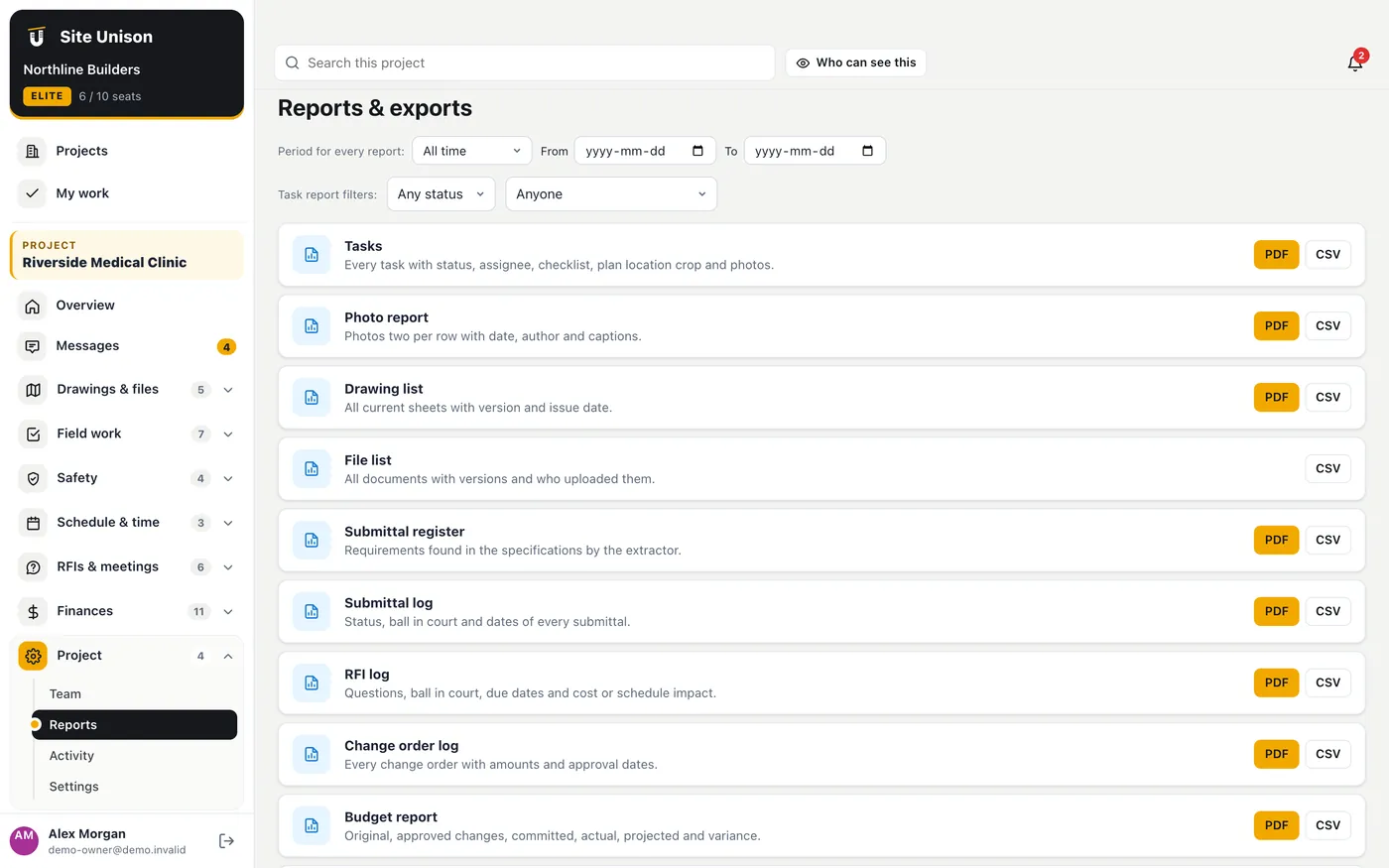
PDF and CSV reports for tasks, photos, RFIs, submittals, change orders, budget, daily logs and more.
How to use it
Open Reports, choose the report and filters and download it.
Activity
WhereProject → Activity
PlanAll plans
WhoEveryone (filtered to what your role can see)
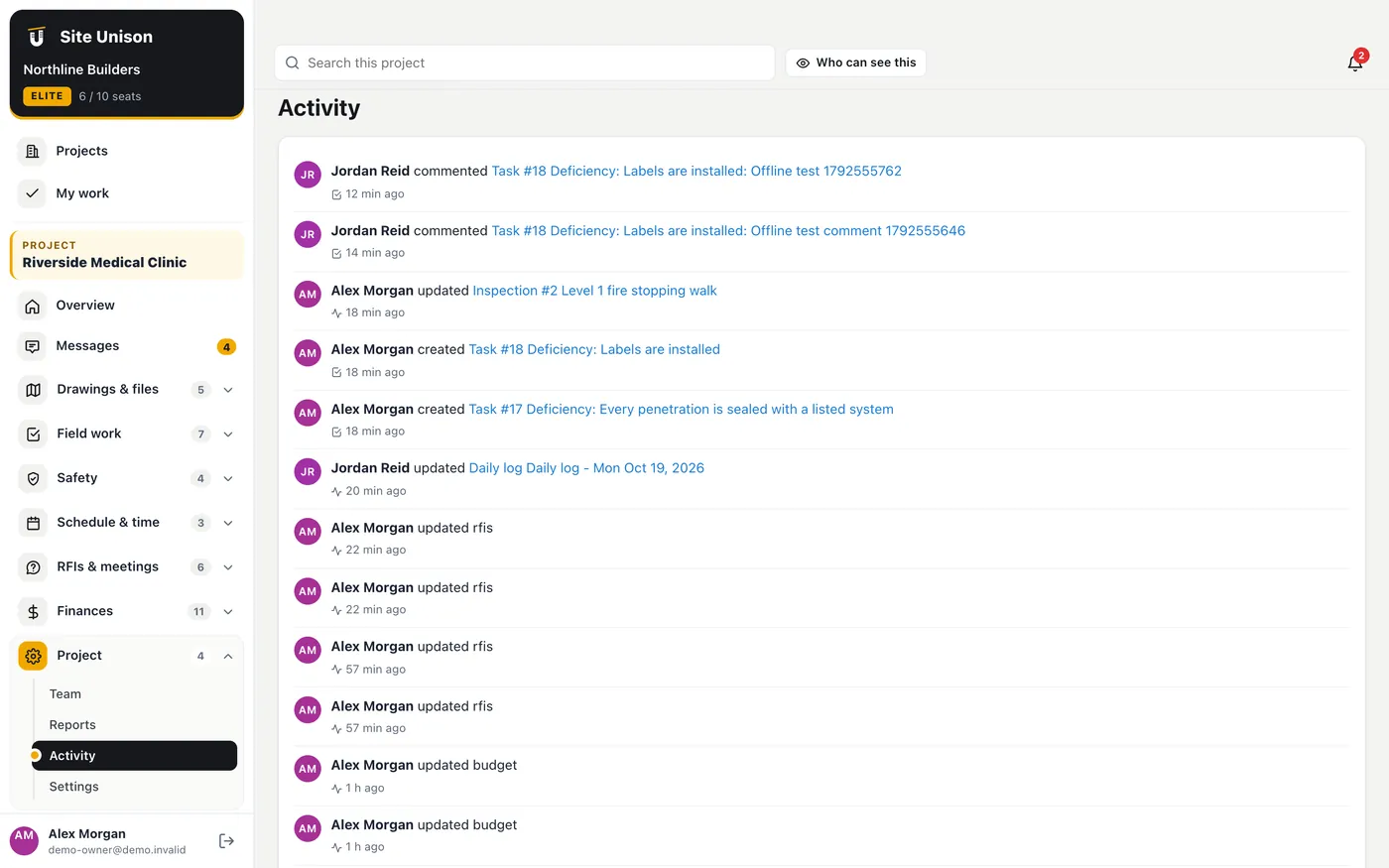
Every change on the project with who made it and when.
How to use it
Open Activity and scroll; click an entry to open the item.
Project settings
WhereProject → Settings
PlanAll plans
WhoOwner and project managers
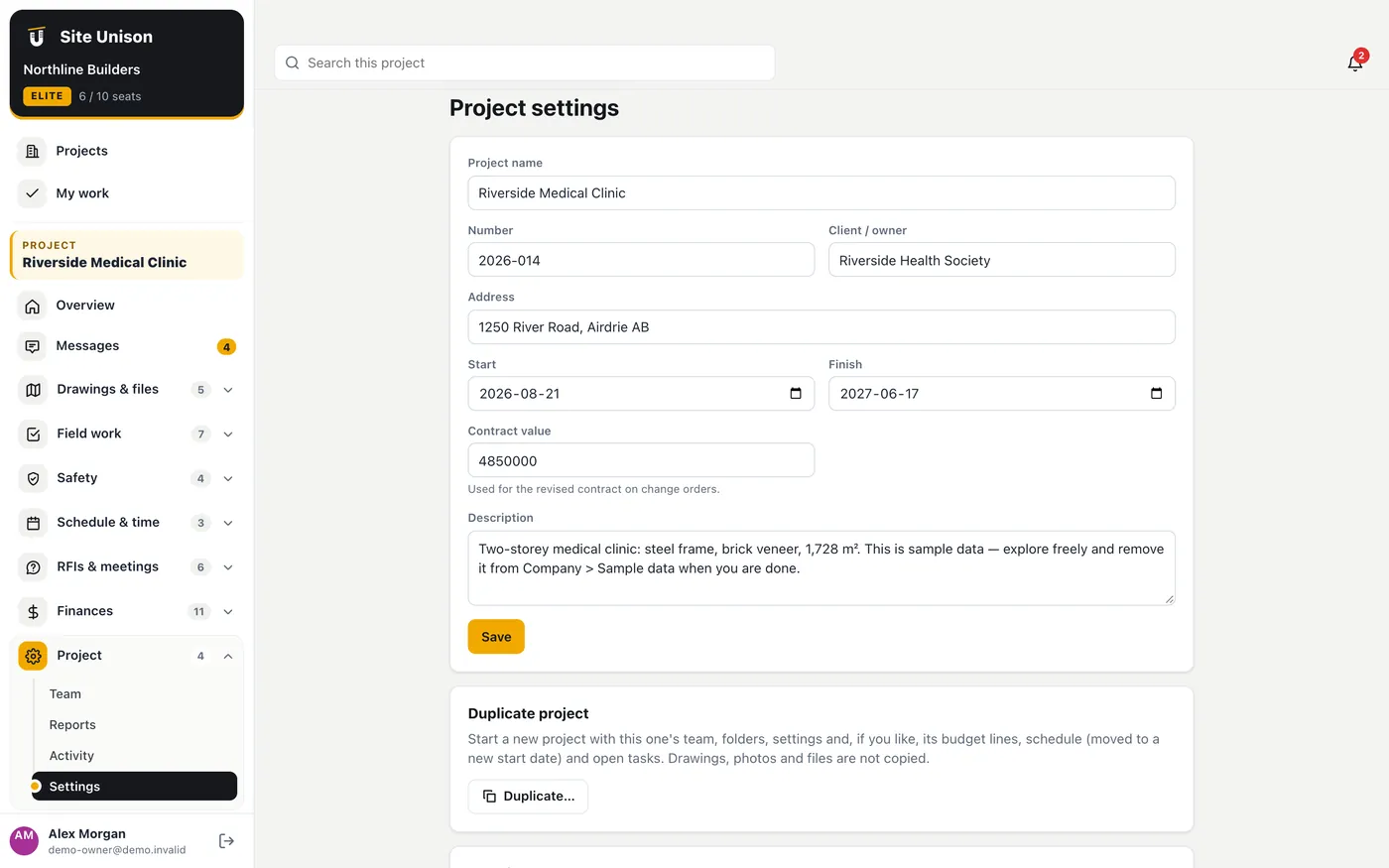
Open Settings, change the details and save. Duplicate copies the setup into a new project; Archive hides a finished project.
Company & people
WhereCompany → Company & people
PlanAll plans
WhoEveryone (what you see depends on your role)
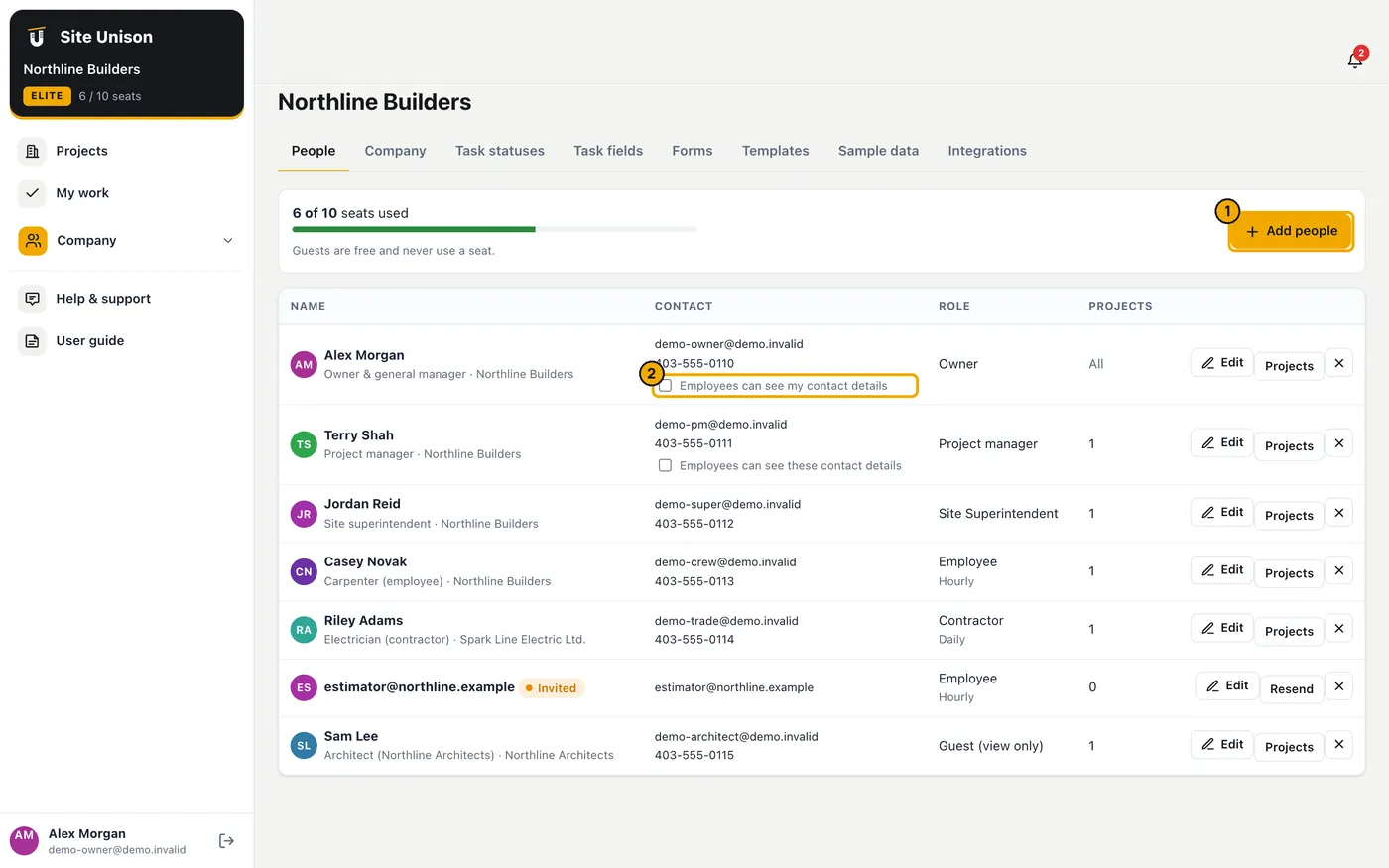
People, roles and seats, company details, task statuses and fields, form templates, project templates, sample data and integrations. Employees and contractors see themselves, the other employees and the superintendents; the owner and project managers appear only if they switch on Employees can see my contact details.
How to use it
Open Company & people → People. Owners and project managers click Add people to invite someone and choose their role.
Click Edit (or Edit my details) to change contact details. Click Projects to choose someone's projects.
Owners and project managers tick Employees can see my contact details to share their phone and email with crews.
Company tools
WhereCompany → Company tools
PlanElite
WhoOwner, project managers and superintendents (finances for owner and PMs)
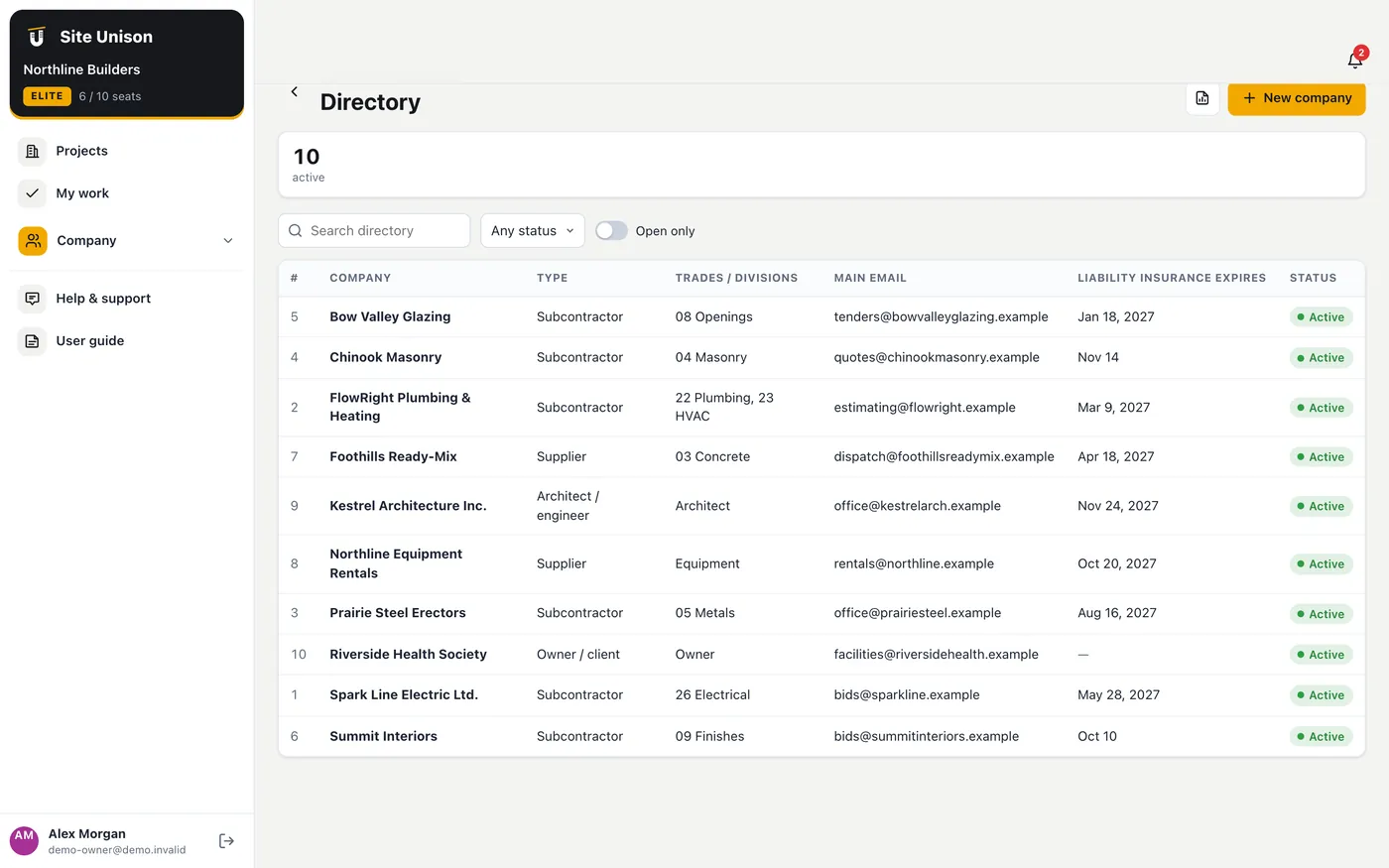
The company-wide screens: Portfolio, Analytics, Directory, Bid board, Prequalification, Cost catalog, Workforce, Equipment, Assets, Concept projects and Capital plans.
How to use it
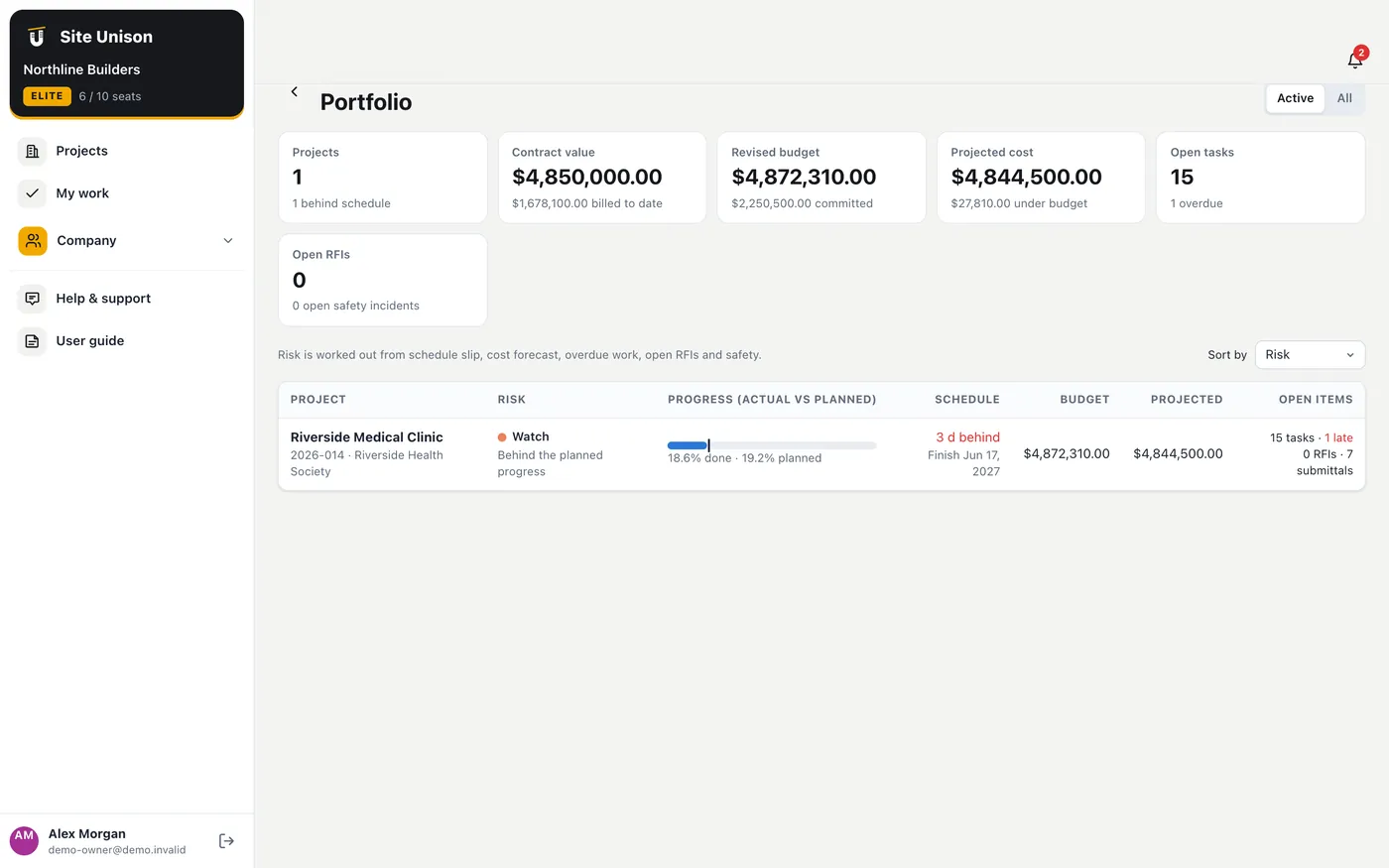
Portfolio: every active project with progress against plan, days behind, budget, forecast, billed to date, open items and a risk rating with the reasons.
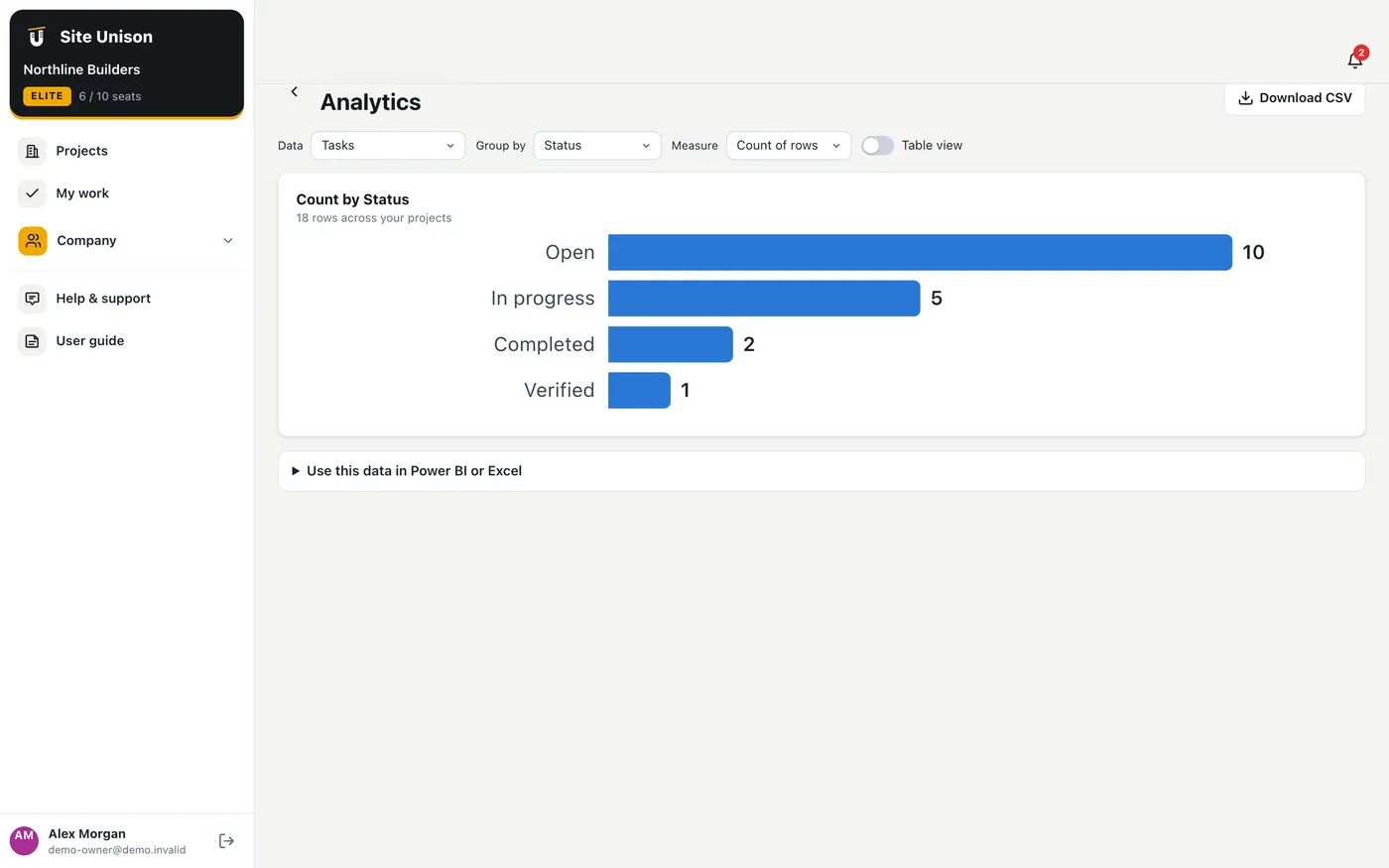
Analytics: pick a dataset, group it by any field or month and see a chart or table; download CSV or connect Power BI.
Directory and Prequalification: trade partners with insurance and WCB expiry dates, and scored questionnaires.
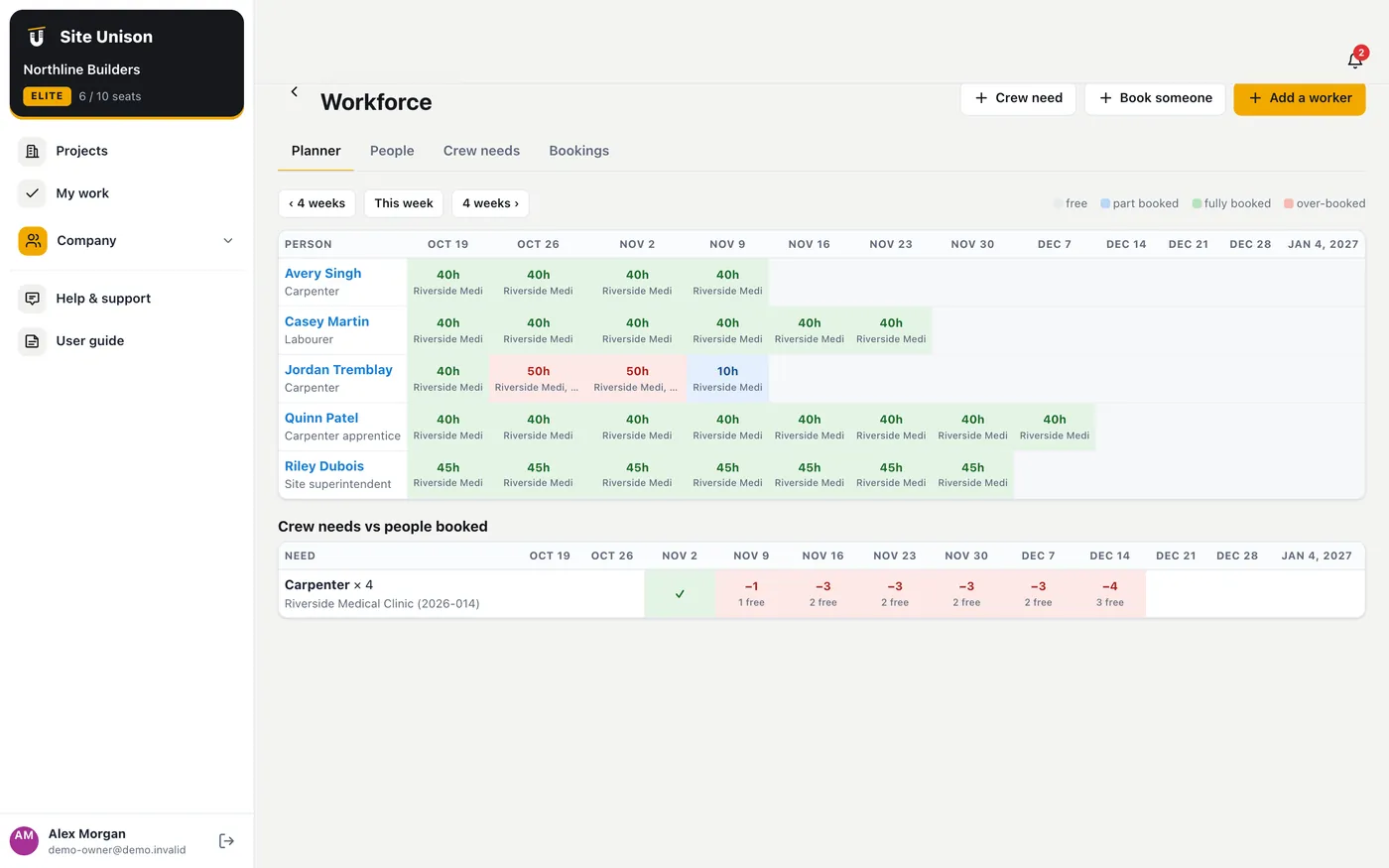
Workforce: book people onto projects and see 12 weeks of bookings against hours and crew needs.
Bid board, Cost catalog, Equipment, Assets, Concept projects and Capital plans work the same way: add, open and update records.
Plan & billing
WhereCompany → Plan & billing
PlanAll plans
WhoOwner
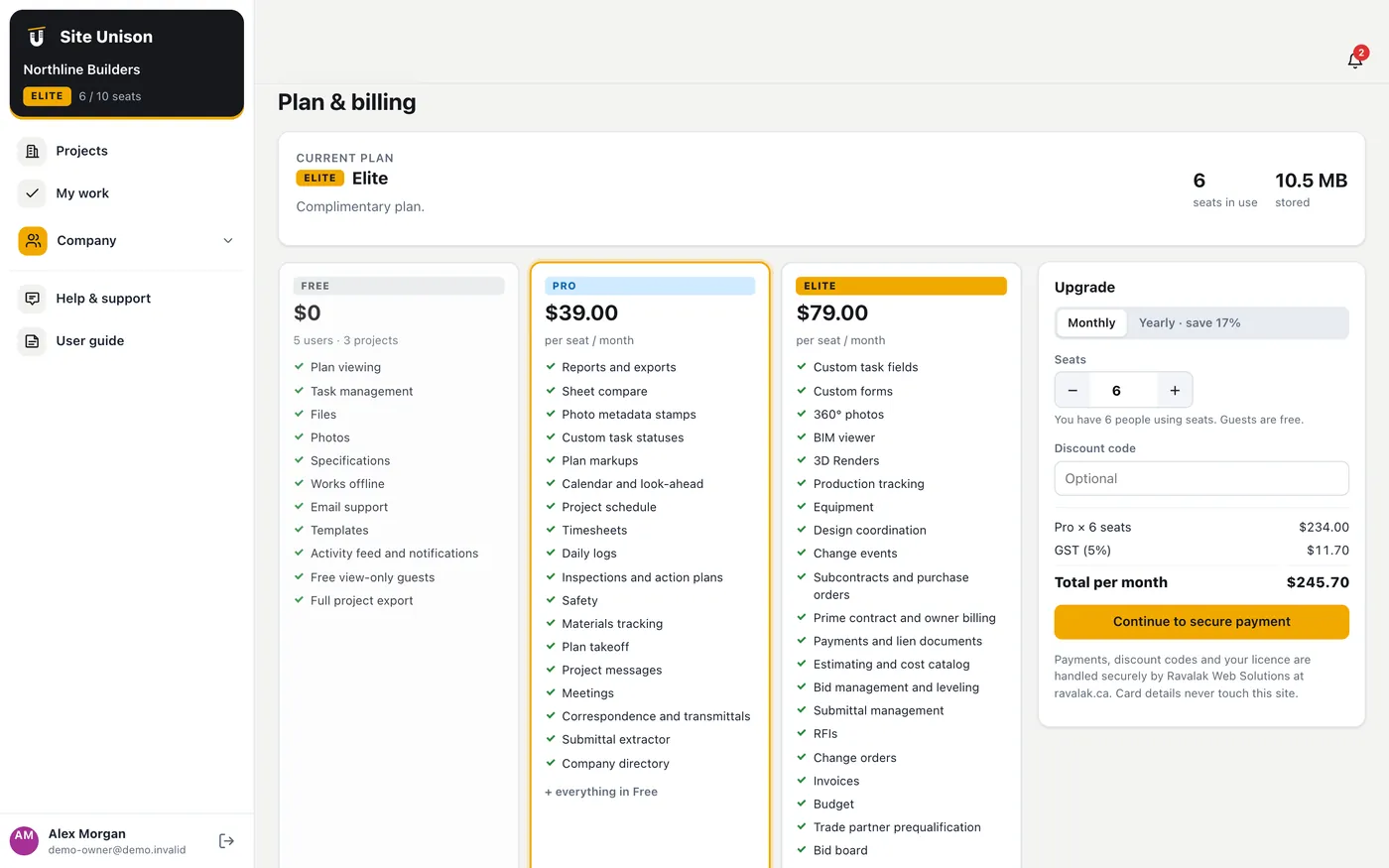
Your plan, seats, interval and invoices. Change plan or seats any time; prices are in Canadian dollars plus tax.
How to use it
Open Plan & billing, choose the plan, interval and seats and click Continue to secure payment (or Update subscription).
Help & support
WhereMenu → Help & support
PlanAll plans
WhoEveryone
Send a question to the Site Unison team and see your past requests. The user guide link opens this guide.
How to use it
Open Help & support, write your question and send it.