User guide / RFIs & meetings

User guide

RFIs & meetings

RFIs, submittals, meetings, coordination, correspondence and transmittals.

RFIs

WhereRFIs & meetings → RFIs PlanElite WhoEveryone on the project

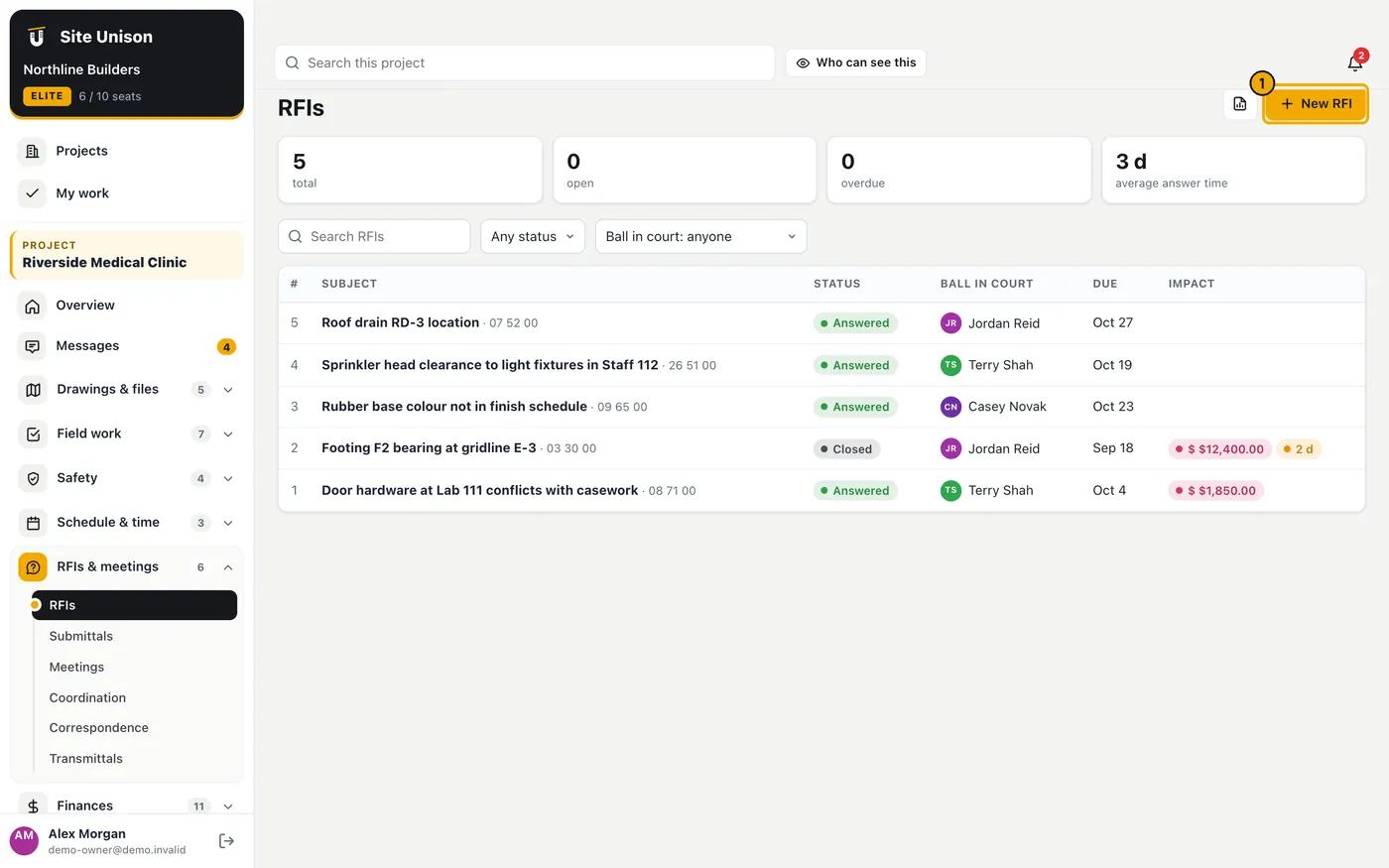
Ask the design team questions with a clear ball-in-court, due date, drawing and spec references, and the answer on the record. RFIs can carry cost and schedule impact and link to change orders.

How to use it

  1. Open RFIs and click New RFI. On Elite, click Write it with AI to turn rough notes into a clear question.
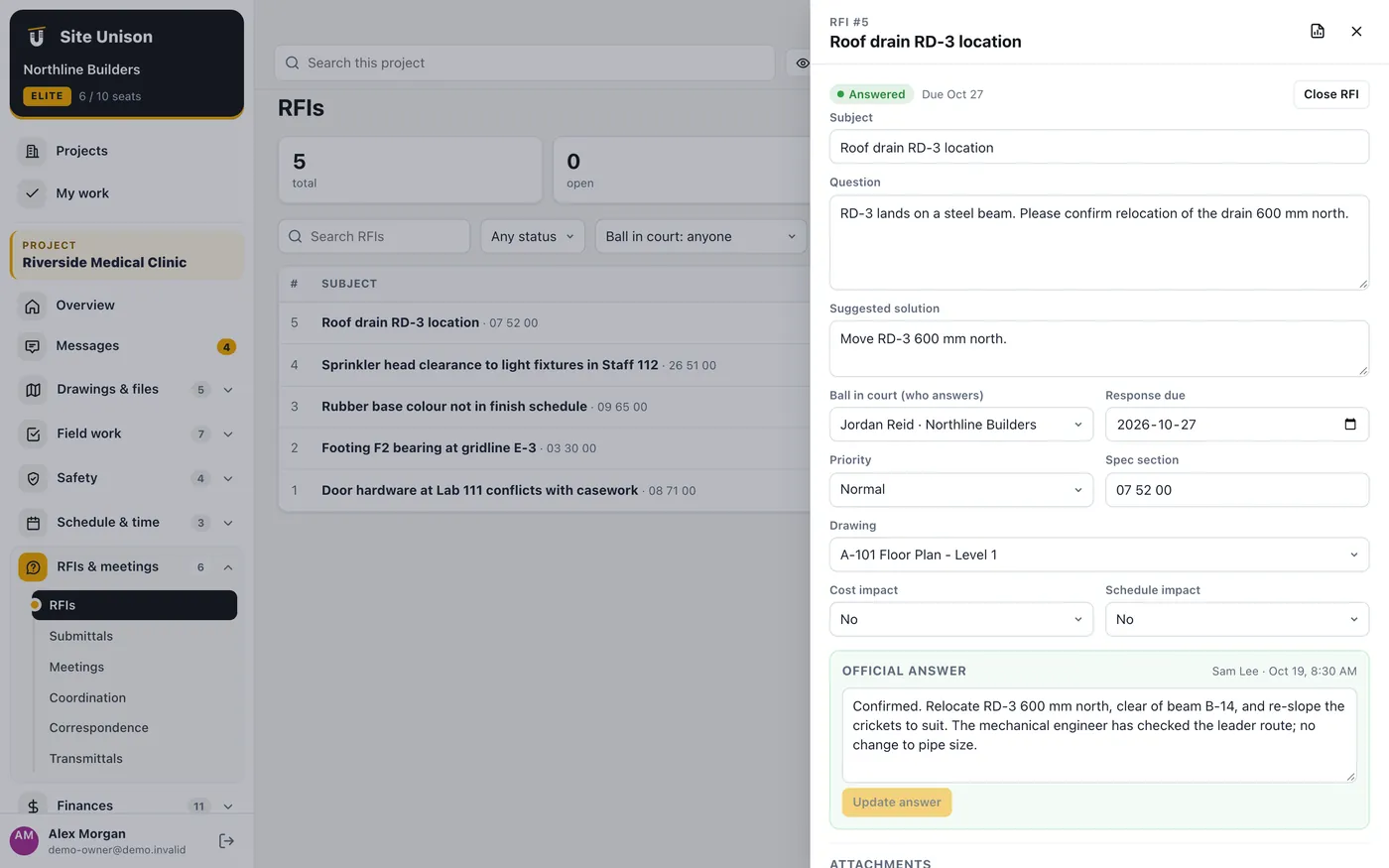
    RFIs in Site Unison: Open RFIs and click New RFI. On Elite, click Write it with AI to turn rough notes into a clear question.
  2. Set who answers and the due date, attach sketches and send. The answer is recorded on the RFI and everyone is notified.
    RFIs in Site Unison: Set who answers and the due date, attach sketches and send. The answer is recorded on the RFI and everyone is

Submittals

WhereRFIs & meetings → Submittals PlanPro (log) / Elite (management) WhoEveryone on the project

Track product data, shop drawings and samples through review with revisions, reviewers and approval stamps. Build the log in seconds with the extractor. The list refreshes as items are added.

How to use it

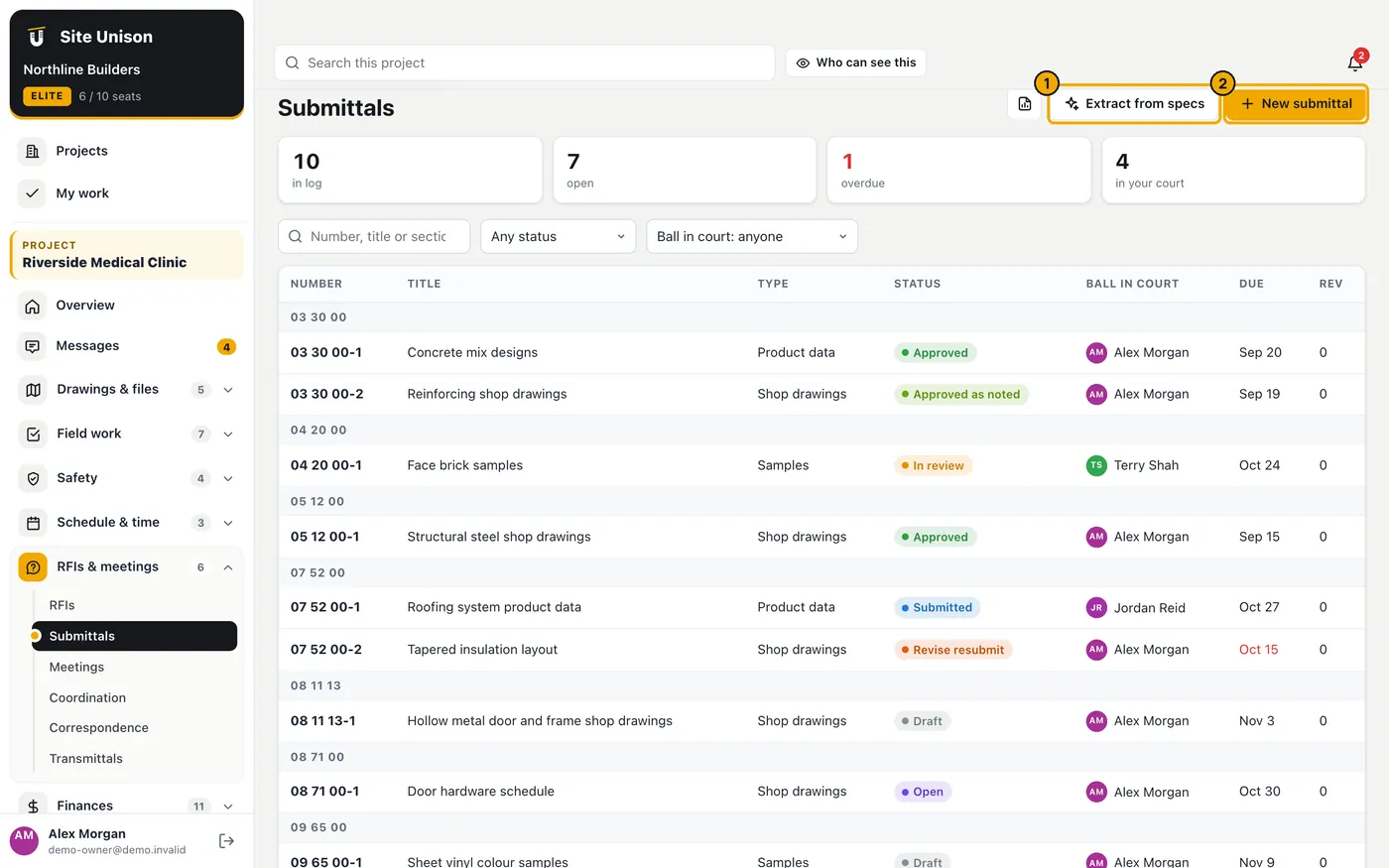
  1. Open Submittals and click Extract from specs, or New submittal.
    Submittals in Site Unison: Open Submittals and click Extract from specs, or New submittal.
  2. Attach the documents, set the reviewer and due date and change the status as it is reviewed. Revise creates the next revision.
  3. On Elite, click Check against the spec (AI) for a requirement-by-requirement check.

Meetings

WhereRFIs & meetings → Meetings PlanPro WhoOwner, project managers and superintendents

Agendas, attendance, discussion, decisions and action items for OAC and coordination meetings.

How to use it

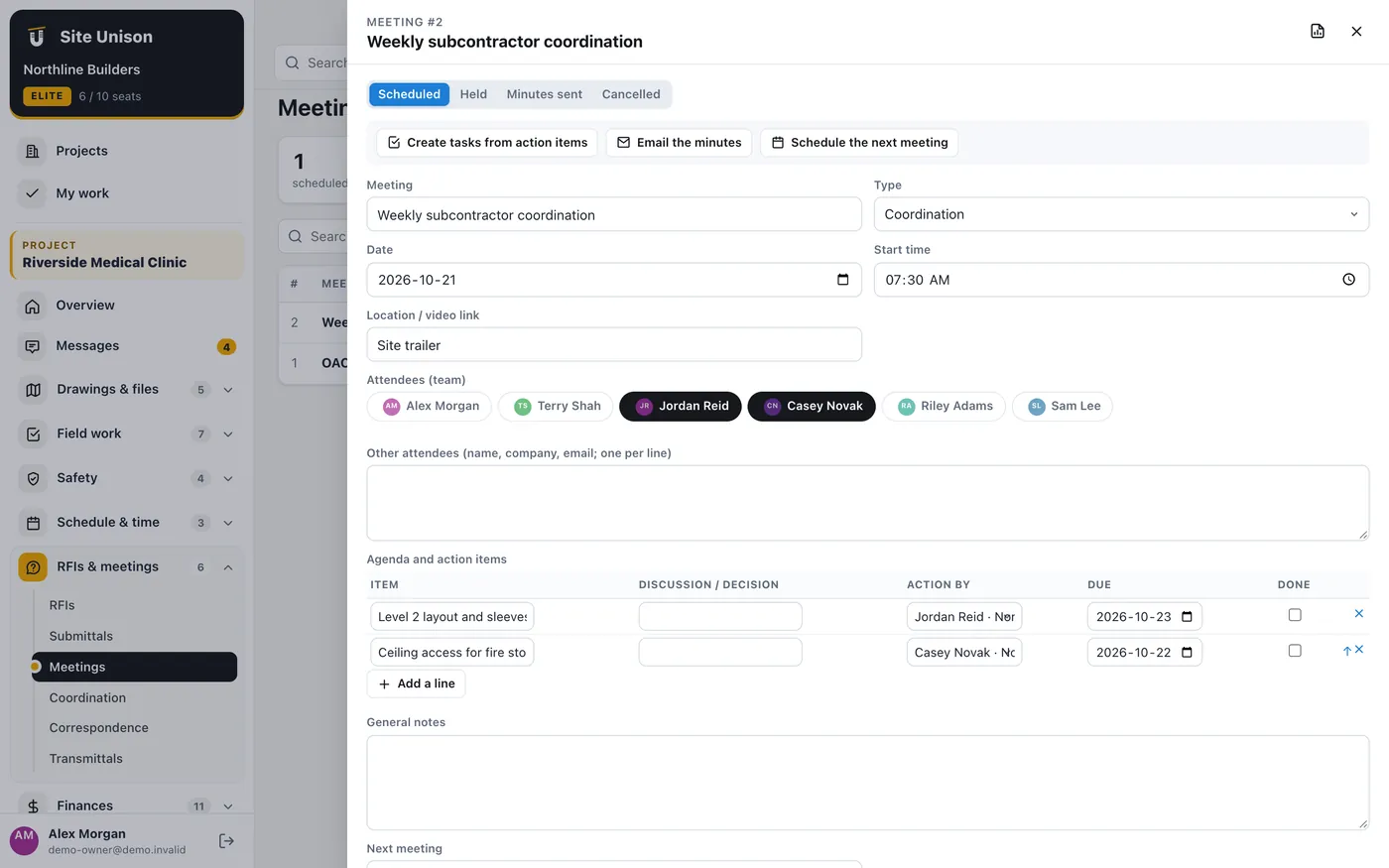
  1. Open Meetings and add a meeting with the attendees and agenda.
    Meetings in Site Unison: Open Meetings and add a meeting with the attendees and agenda.
  2. Record decisions and action items with an owner and date. Click Create tasks from action items, Email the minutes or Schedule the next meeting (open items carry over).

Coordination issues

WhereRFIs & meetings → Coordination PlanElite WhoOwner, project managers and superintendents

Clashes and coordination issues tied to a model element, with discipline, priority, trade and resolution.

How to use it

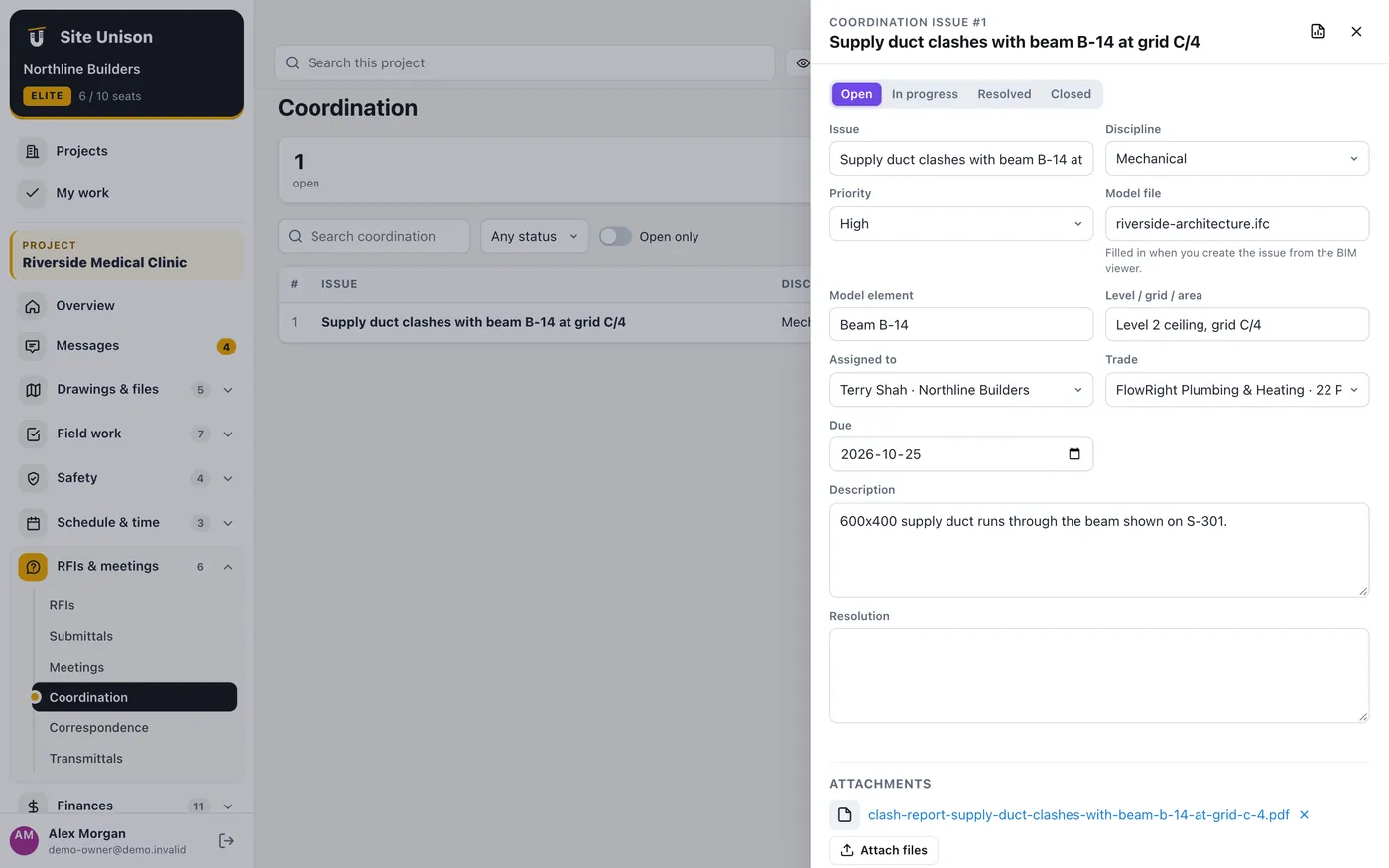
  1. Create an issue from a BIM element, or click New here and fill in the model and element.
    Coordination issues in Site Unison: Create an issue from a BIM element, or click New here and fill in the model and element.
  2. Assign it and record the resolution when it is fixed.

Correspondence

WhereRFIs & meetings → Correspondence PlanPro WhoOwner, project managers and superintendents

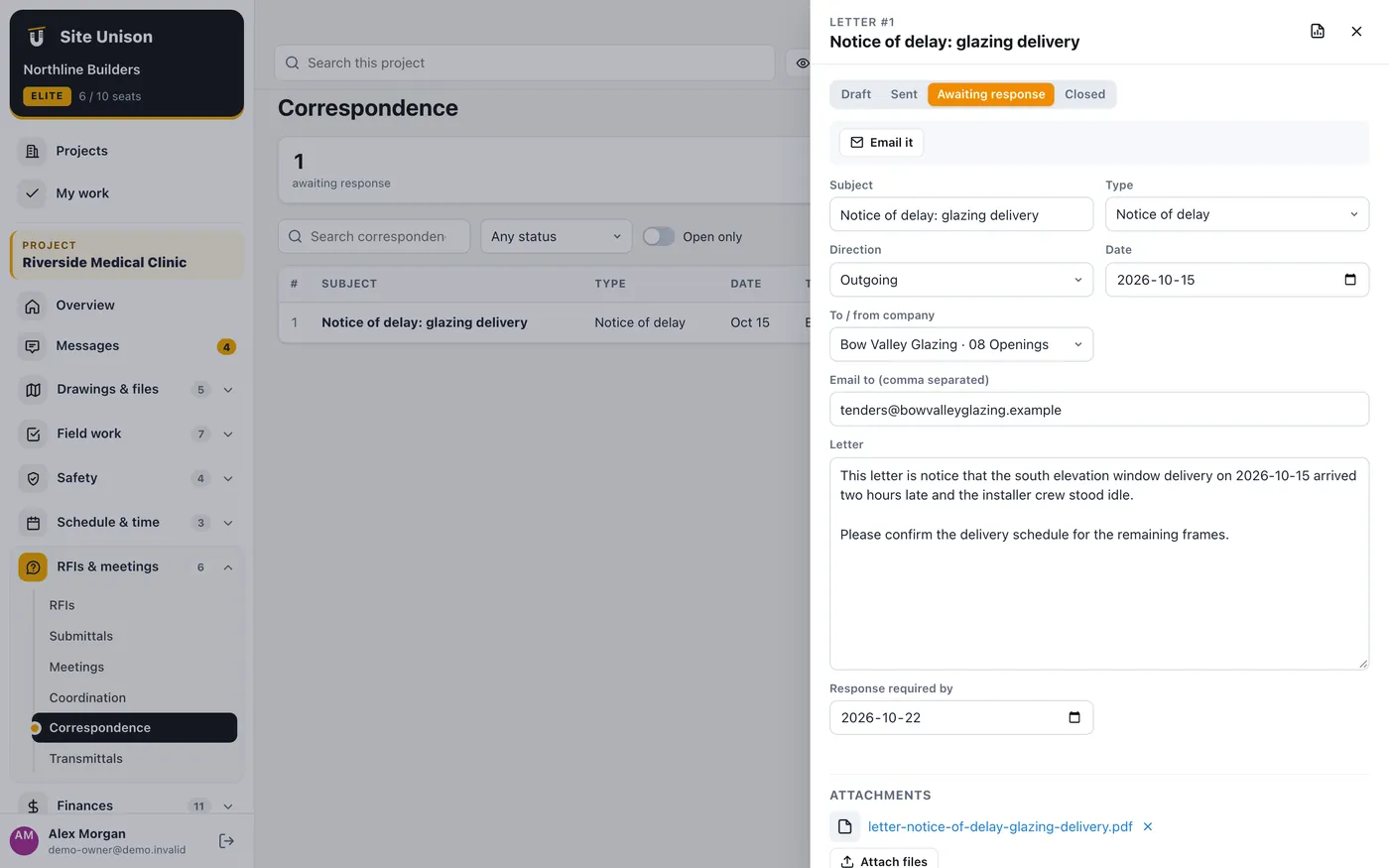
Formal letters and notices (delay, change, backcharge and more) written, sent and tracked to a response date.

How to use it

  1. Open Correspondence, add a letter, choose the kind and recipient, write it and click Send.
    Correspondence in Site Unison: Open Correspondence, add a letter, choose the kind and recipient, write it and click Send.

Transmittals

WhereRFIs & meetings → Transmittals PlanPro WhoOwner, project managers and superintendents

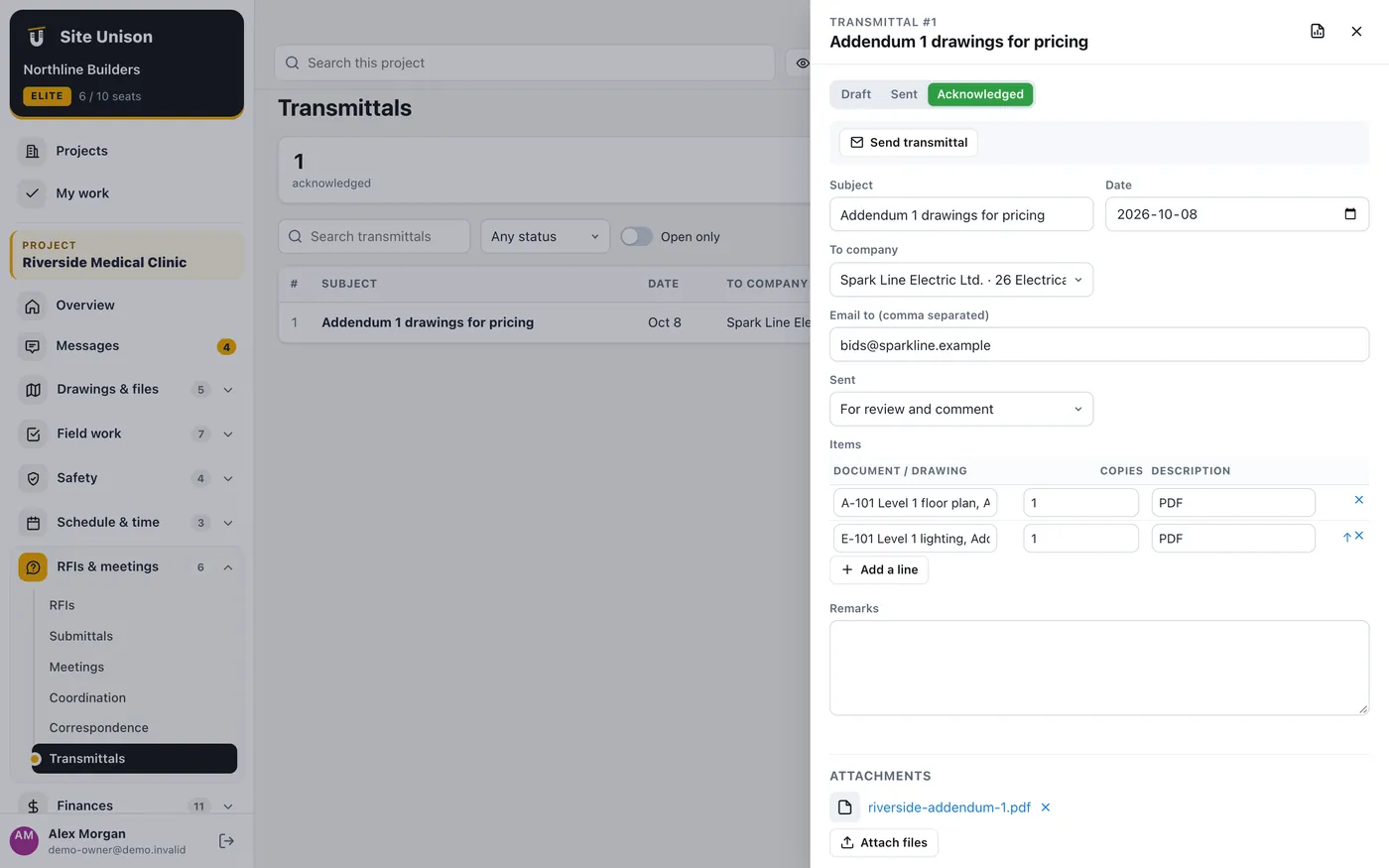
Send documents with a transmittal. Recipients open a private link, download the files and acknowledge receipt, which is logged.

How to use it

  1. Open Transmittals, add one, attach the files and choose the recipients, then click Send.
    Transmittals in Site Unison: Open Transmittals, add one, attach the files and choose the recipients, then click Send.
  2. The transmittal shows when it was acknowledged and by whom.