
Construction timesheets from the phone, approved on site
Crew members start and end their shift on their phone, add site photos and a note about the work, and send the day to the site superintendent to approve and code to a division or change order.
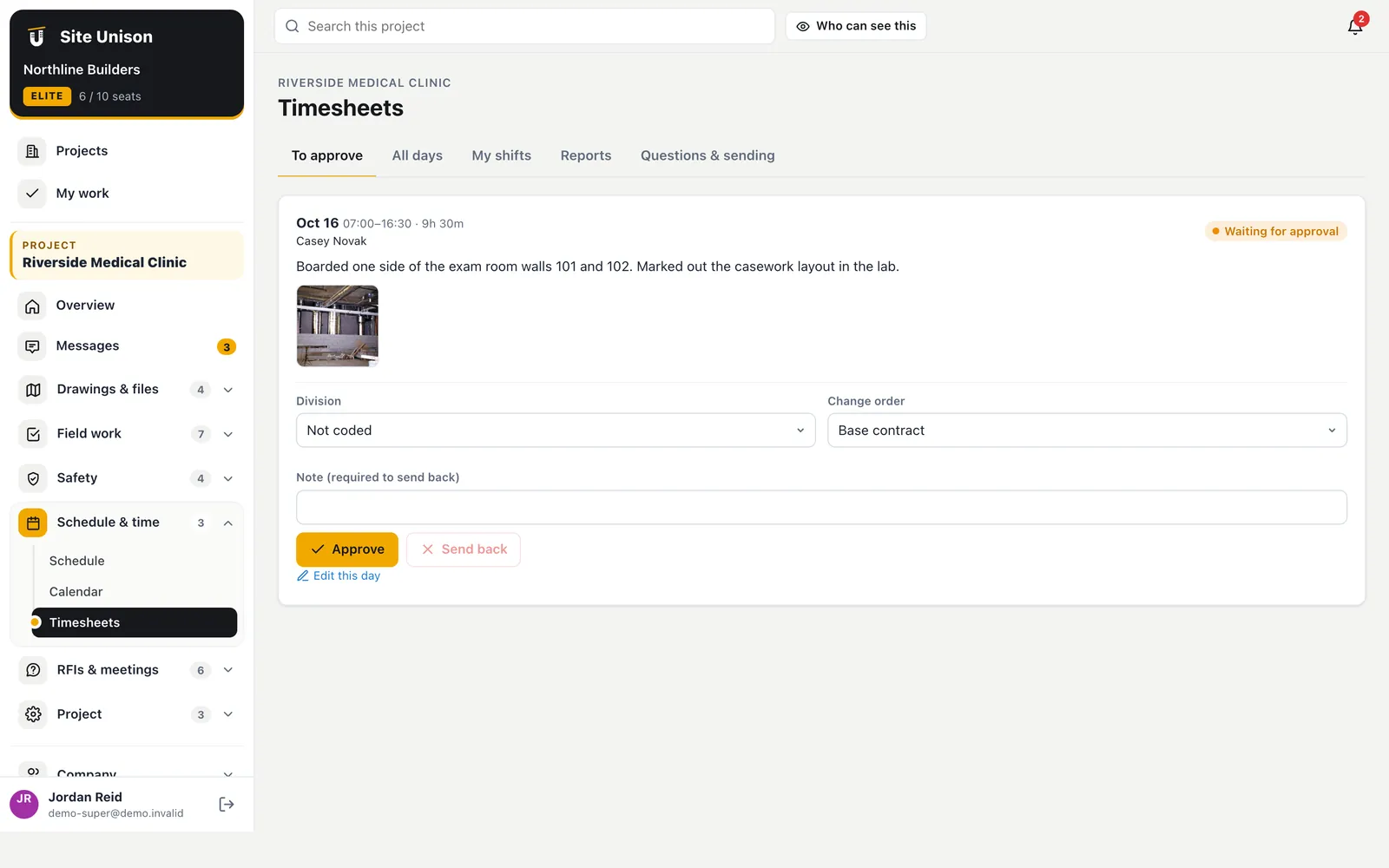
Approve or send back
One tap to approve, or send it back with a note.
Coded hours
Hours land on a division or change order as they are approved.
Approvals
The superintendent signs off every day
Each submitted day lands with the site superintendent, with the hours, the note and the photos. Approve it and code the hours to a division or change order, or send it back with a note asking for what is missing.
- Coded to divisions and change orders. So you know where the hours went.
- Send back with a reason. The crew member fixes it and resubmits.
- Changes after approval. Only the superintendent or the owner can edit an approved day.
Reports
Hours by person, division and change order
Run a report for any date range with totals by person, division and change order. On the day the superintendent chooses, each person's monthly timesheet is sent automatically, showing days for daily-rate workers and hours for hourly ones, never dollar amounts.
- Monthly timesheets, sent for you. PDF by email on the day you set.
- Hourly or daily pay. Set per person by the project manager.
- No pay rates on reports. Hours and days only.
Daily questions
Add mandatory yes/no questions, like PPE worn or site left secure.
Site photos
Every shift needs at least one photo of the day's work.
In the field
Start shift. End shift. Done.
Employees and contractors see only plans, photos and their timesheets. At the end of the day they add a note of at least 30 characters and their site photos, tick the daily questions and submit.
- Start and end shift with one tap
- Photos straight from the phone camera
- See what was sent back and why
How to get timesheets approved the same day
Timesheets get messy when they are filled in at the end of the week. Crews start and end their shift on the phone, with a photo and a note.
The superintendent approves or sends back each day and codes hours to a division or change order.
A quick checklist:
- Start and end shifts on the phone.
- Add a note and photo.
- Approve on site.
- Code hours to a division.
For working hours guidance, see CCOHS. Start free, try the live demo or compare pricing.
Questions
Common questions
Who can add crew members?
The owner, project managers and the site superintendent can add employees and contractors to a project.
Can comments be edited?
The owner, project manager and site superintendent can edit the comment on a day. Only the superintendent or owner can change a day once it is approved.
Do timesheets show pay?
No. Timesheets and reports show hours or days only. Pay rates are set by the project manager and never appear on them.
Who approves timesheets?
The site superintendent approves or sends them back.
Works with
Related features
Site photos
Stamped with date, time and GPS, linked to tasks and plan spots, shown on a map, plus 360° walks.
Learn more →Daily logs & forms
Daily logs with the weather filled in, crews, equipment, deliveries and your own forms. The AI can write the log from your notes.
Learn more →Schedule & critical path
Microsoft Project import and export, task links, the critical path, a forecast finish, a 3-week look-ahead and a 3D build-up.
Learn more →Run your next job in unison.
Start in a minute. The Free plan needs no credit card. Pro and Elite start with 14 days of Elite (estimating, billing, safety and the AI assistant): add a card, nothing is charged until the trial ends, then your plan is charged automatically. Add a sample project to explore first.